SmartKitPro

Infinitie Technologies is the team of tech savvies who are well-versed and experienced to standard programming approaches and never compromising on quality work, help us to produce great outcomes.

We trust in your ideas and want to help you bring them to life, so you can focus on your long term vision while we do all the hard work. As a service providing company, we understand your needs and strive hard to provide you with the best possible quality of service whether it is the development of your app, logo design or branding, or UI/UX improvements.

To achieve the above, we have handpicked our people and recruited a team of multi-talented individuals, each of whom adds a unique skill to our team of service providers. We ensure quality by imparting strict testing of all our products, listening to the customer complaints, and solving their problems on a priority basis.

How to Setup Flutter in Android Studio

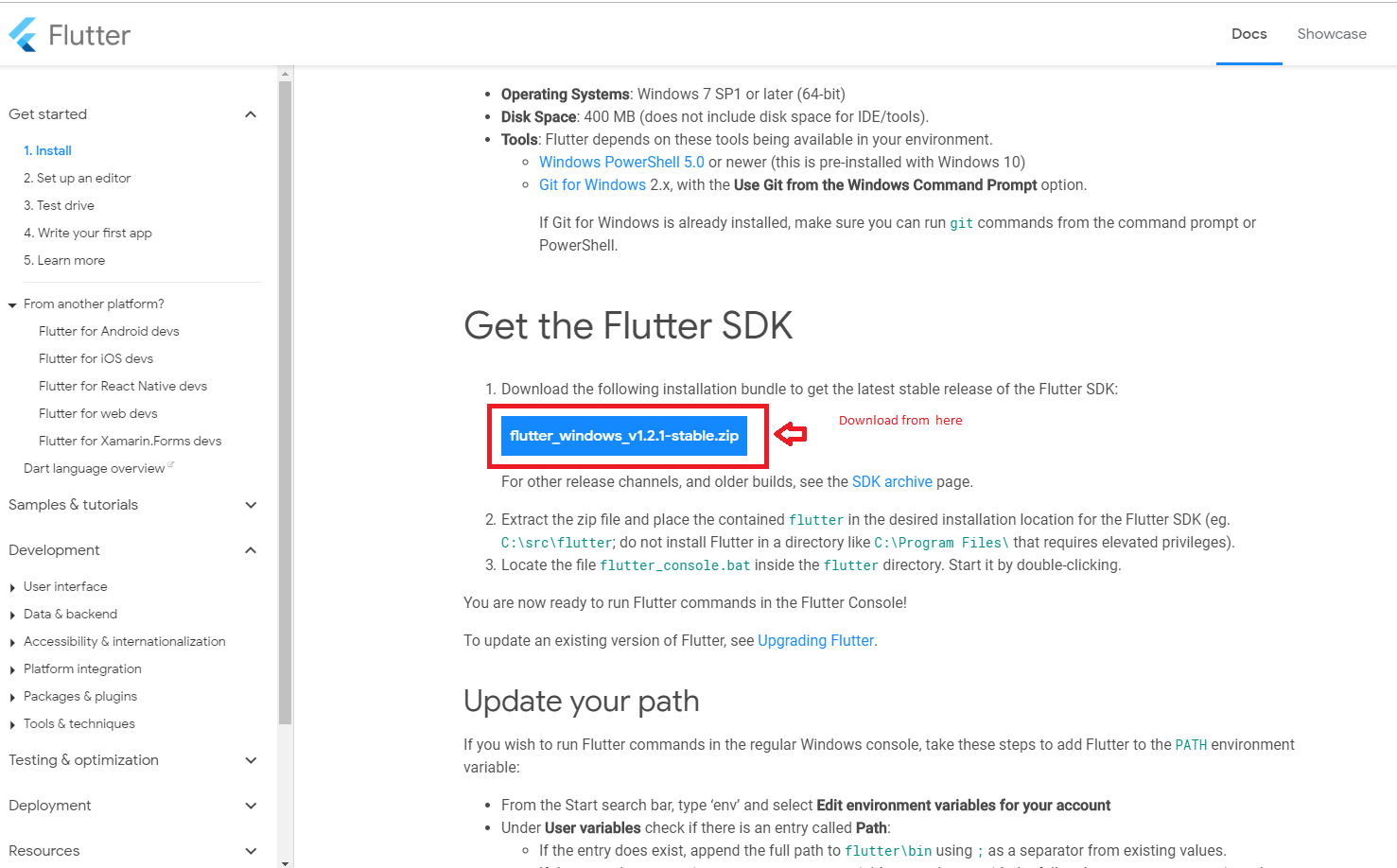
  1. Download Flutter SDK from below link.in that click on flutter_window_xxx.zip button.
  2. Flutter Stable Version :- Flutter 3.38.5
  3. Java Verison :- 21.0.8
  4. Flutter sdk Here

  5. SmartKitPro

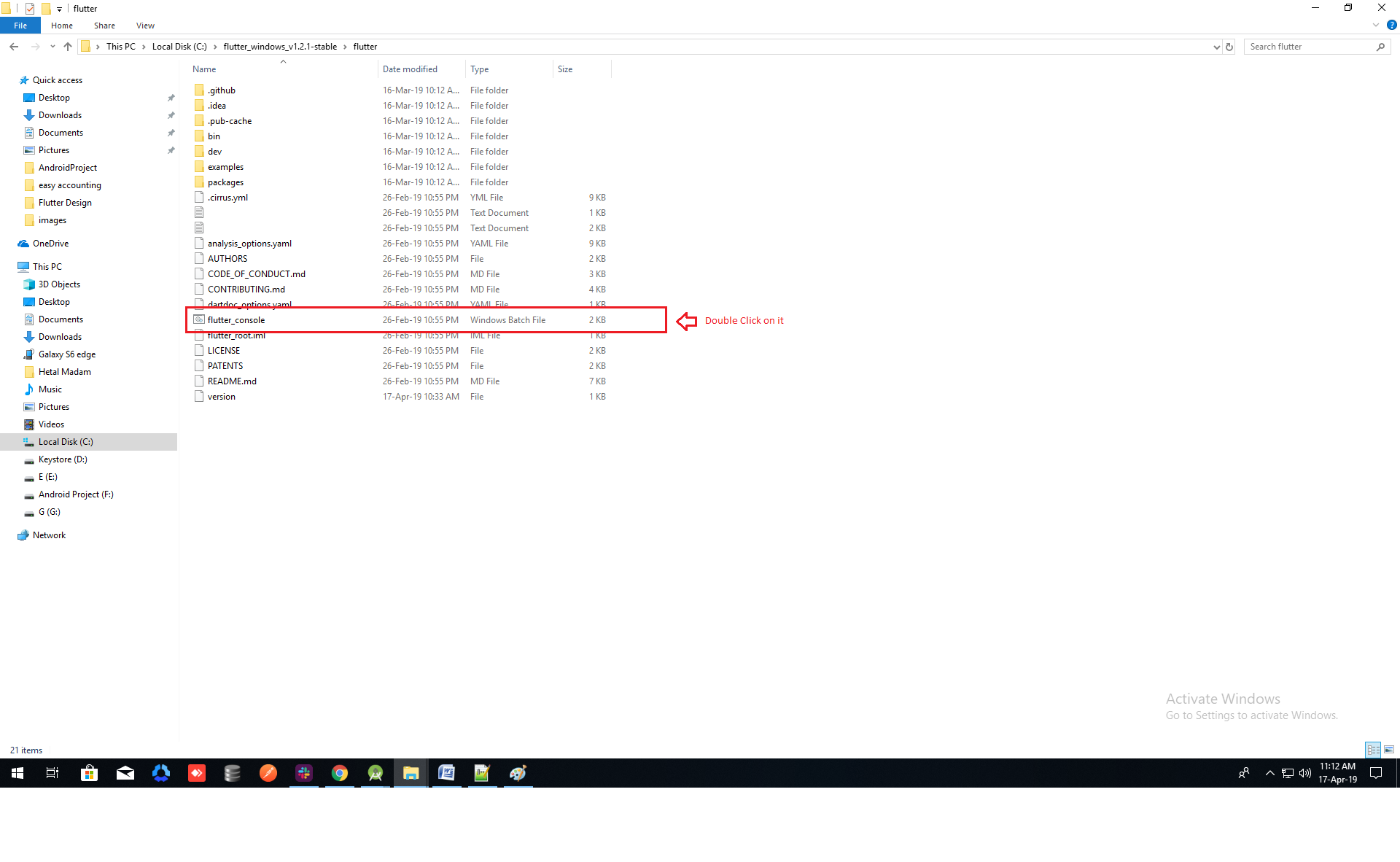
  6. Extract the zip file and copy flutter folder into your desired installation location for the Flutter SDK (eg. C:\src\flutter; do not install Flutter in a directory like C:\Program Files\).

  7. Inside Flutter folder find flutter_console.bat. Start it by double-clicking.


  8. SmartKitPro
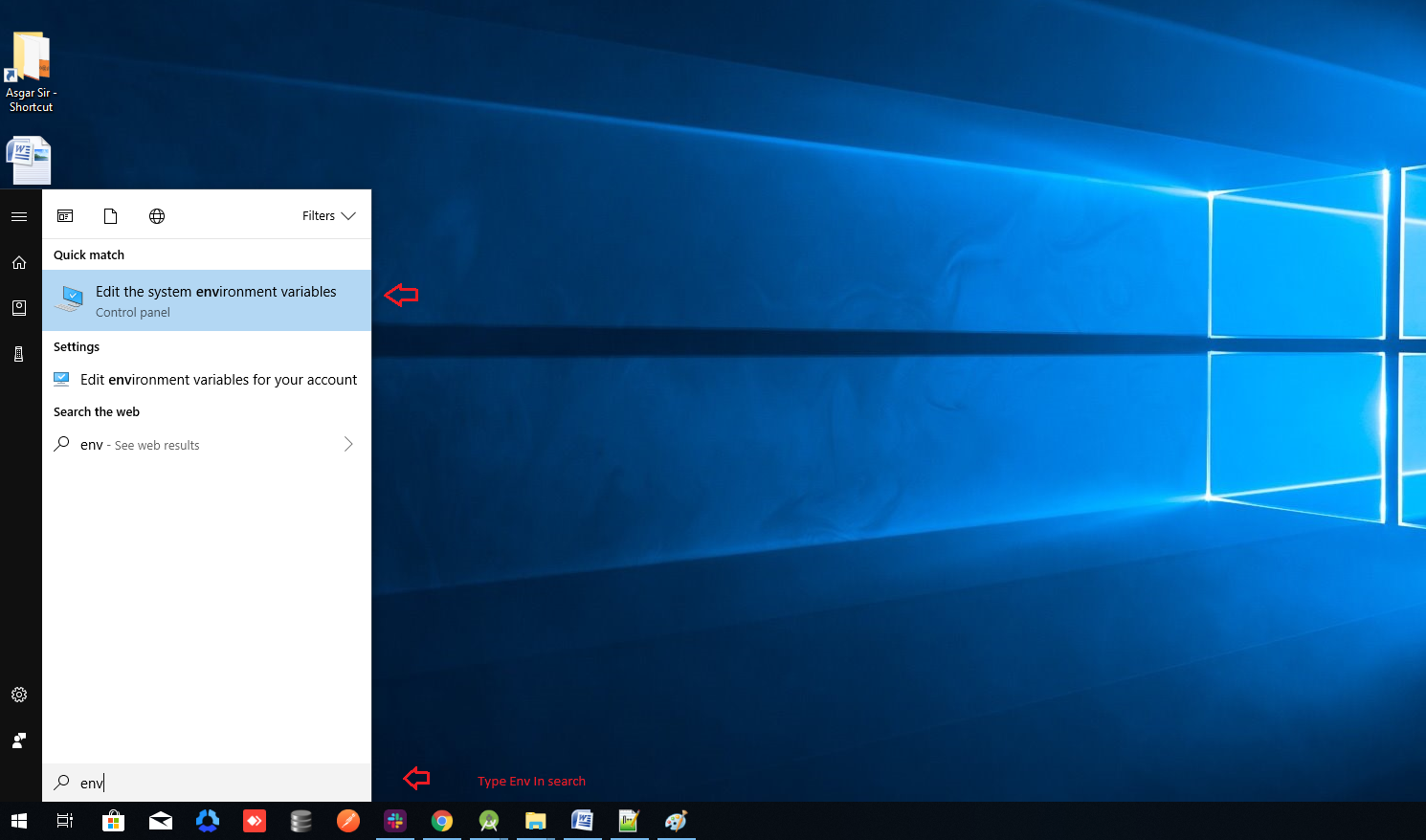
  9. Now set your enviournment variable
  10. From the Start search bar in , type 'env' and select Edit environment variables for your account

  11. SmartKitPro

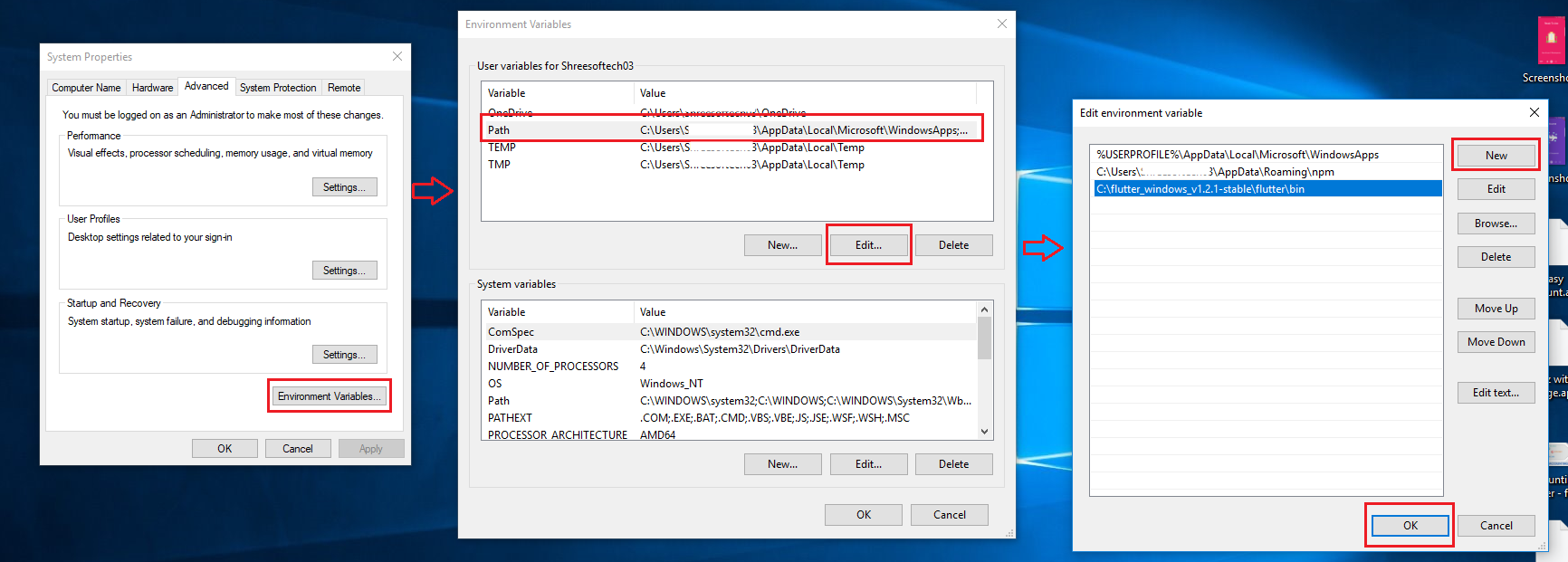
  12. Under User variables check if there is an entry called Path:
  13. Click on Edit.new Dialog open from it click on new and copy full path to flutter\bin as its value
  14. Now Restart your pc for changes to take effect
  15. SmartKitPro

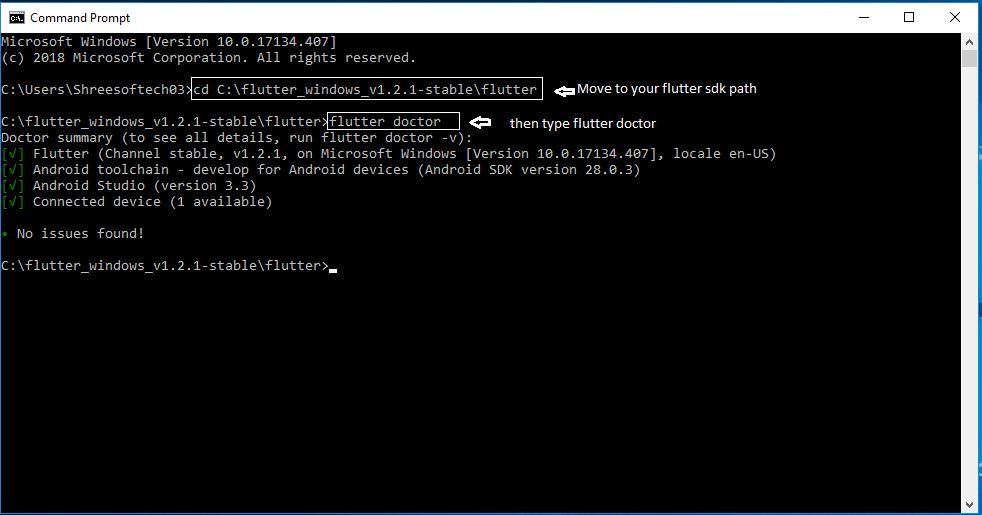
  16. Now check everything is ok or not
  17. open cmd and do following shown in below picture

  18. SmartKitPro

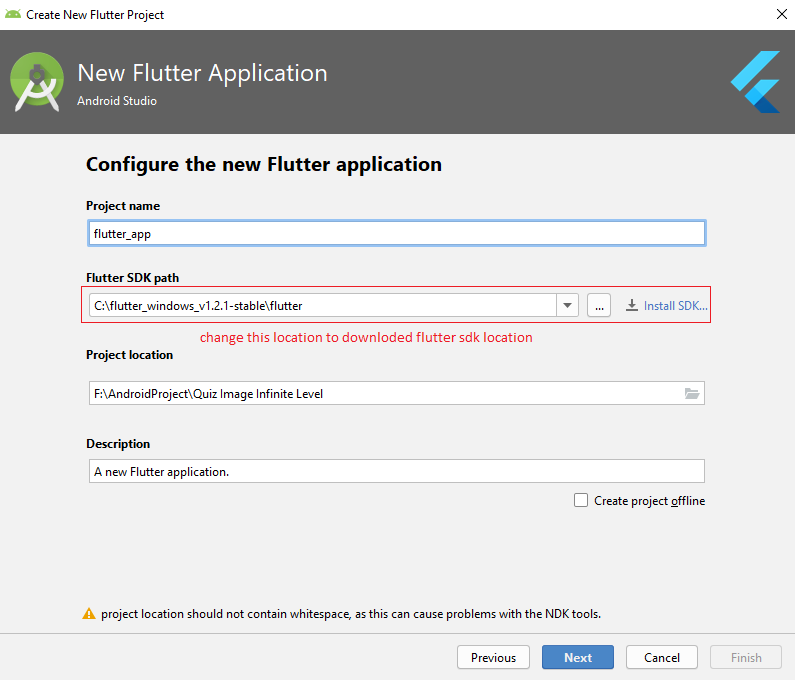
  19. Now open Android Studio and create new flutter project then select your flutter sdk file to the location where we have downloaded earlier and that's it
  20. SmartKitPro

How to Setup Flutter in Android Studio on macOS

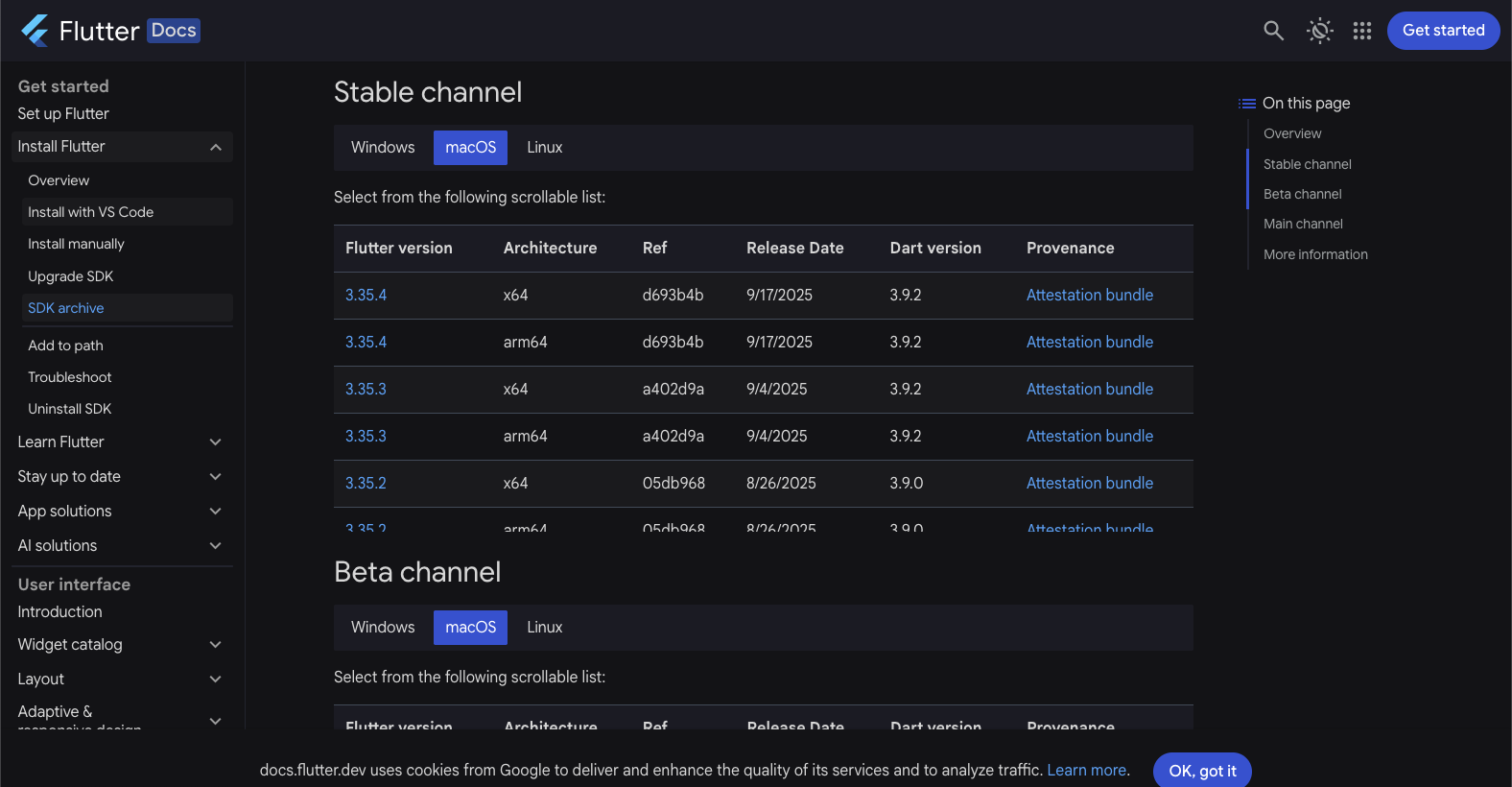
  1. Download the Flutter SDK for macOS: Flutter Stable Version - Flutter 3.35.4
  2. Required Java Version: 21.0.8
  3. set-up-android-studio
  4. Extract the downloaded flutter_macos_xxx.zip file and copy the flutter folder into your preferred installation location (e.g. ~/development/flutter). Do not place it in system directories like /Applications or /System.
  5. Add Flutter to your PATH:
    1. Open the terminal.
    2. Edit your shell configuration file (e.g. ~/.zshrc for Zsh, or ~/.bashrc for Bash).
    3. Add the following line:
      export PATH="$PATH:$HOME/development/flutter/bin"
    4. Run source ~/.zshrc (or the appropriate file) to apply changes.
  6. Verify installation:
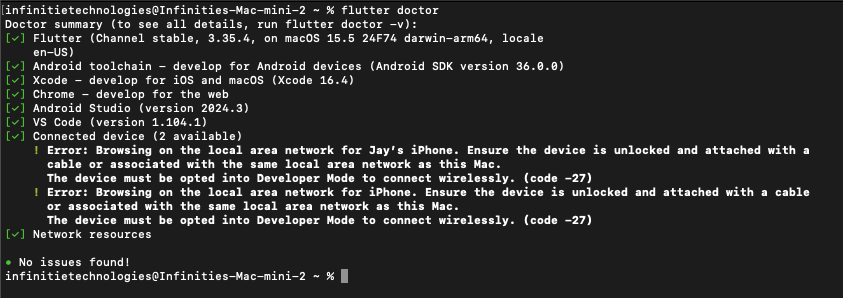
    flutter doctor
    This will check if Flutter and its dependencies are properly set up.
  7. set-up-android-studio
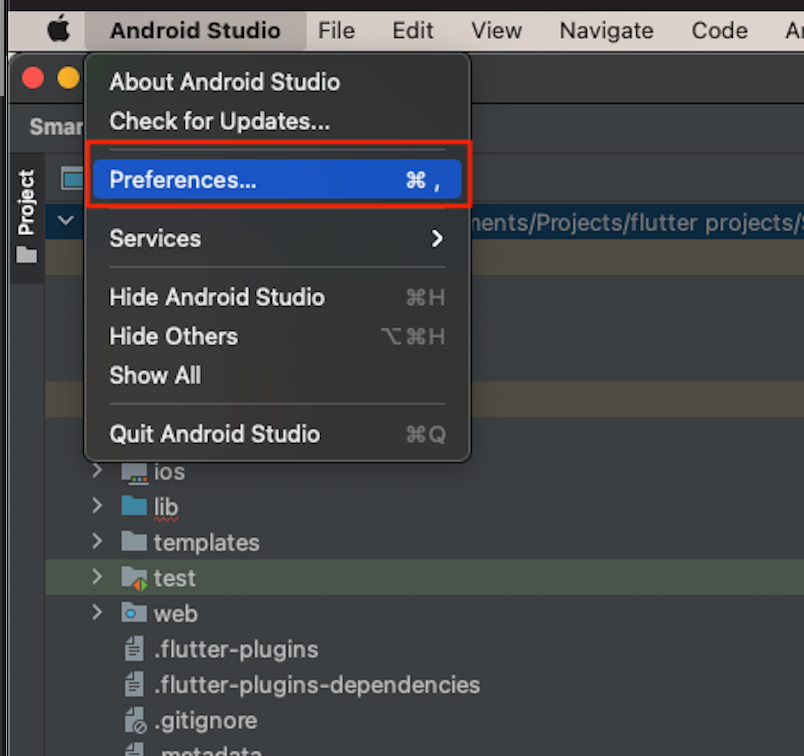
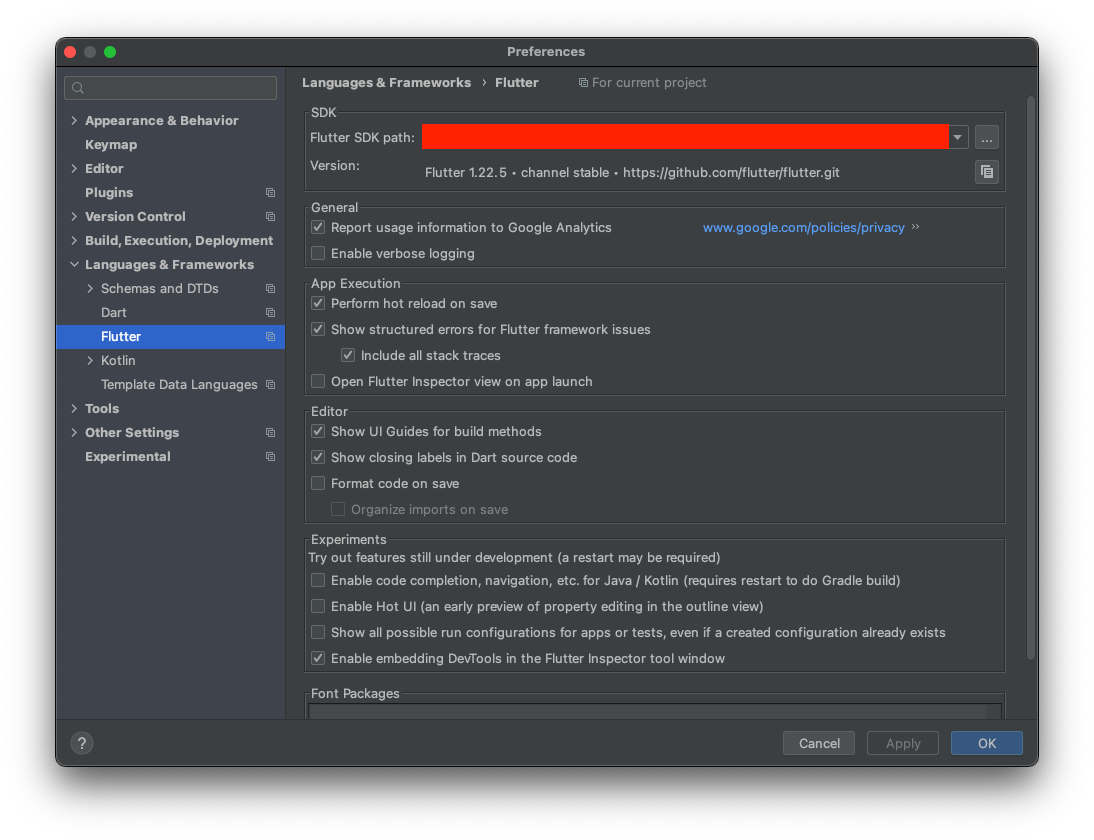
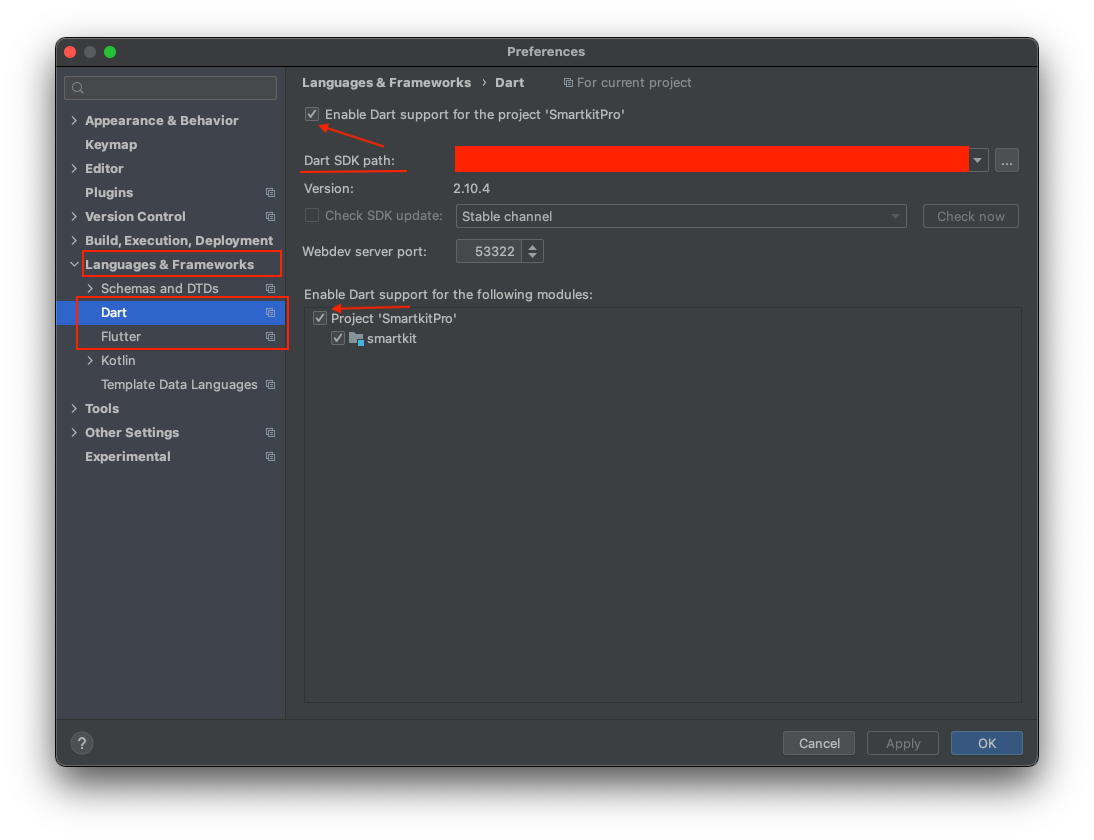
  8. Open Android Studio → Go to Preferences > Languages & Frameworks > Flutter. Set the Flutter SDK path to the folder you installed earlier, then enable Dart support.
  9. set-up-android-studio
  10. Create a new Flutter project in Android Studio. You’re now ready to build Flutter apps on macOS!
  11. For more detailed instructions you can refer to this video here.
Setup Project on MacOS

  1. Open Project folder in Android Studio. Go to Preferences > Language & Frameworks > Flutter and Set Flutter SDK Path & Enable Dart support for Project and Apply and OK.

  2. SmartKitPro

    SmartKitPro
    SmartKitPro

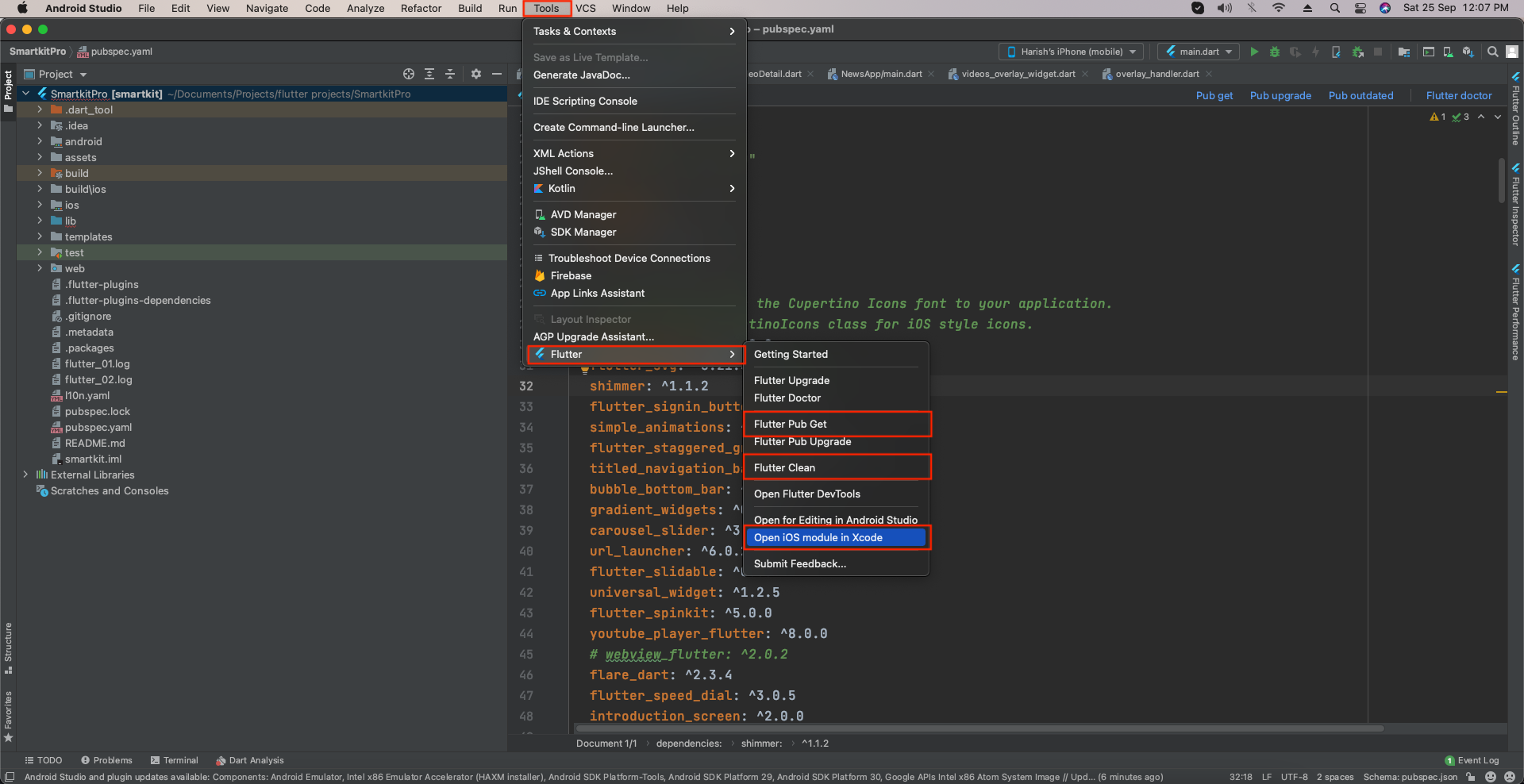
  3. Next: Go to Flutter > Clean Flutter > Flutter Pub Get.

  4. Go to Terminal > write command -> cd iOS and press enter key and then write command pod install. After finishing pods installation.

  5. Go to Flutter > Open iOS module in Xcode

  6. SmartKitPro
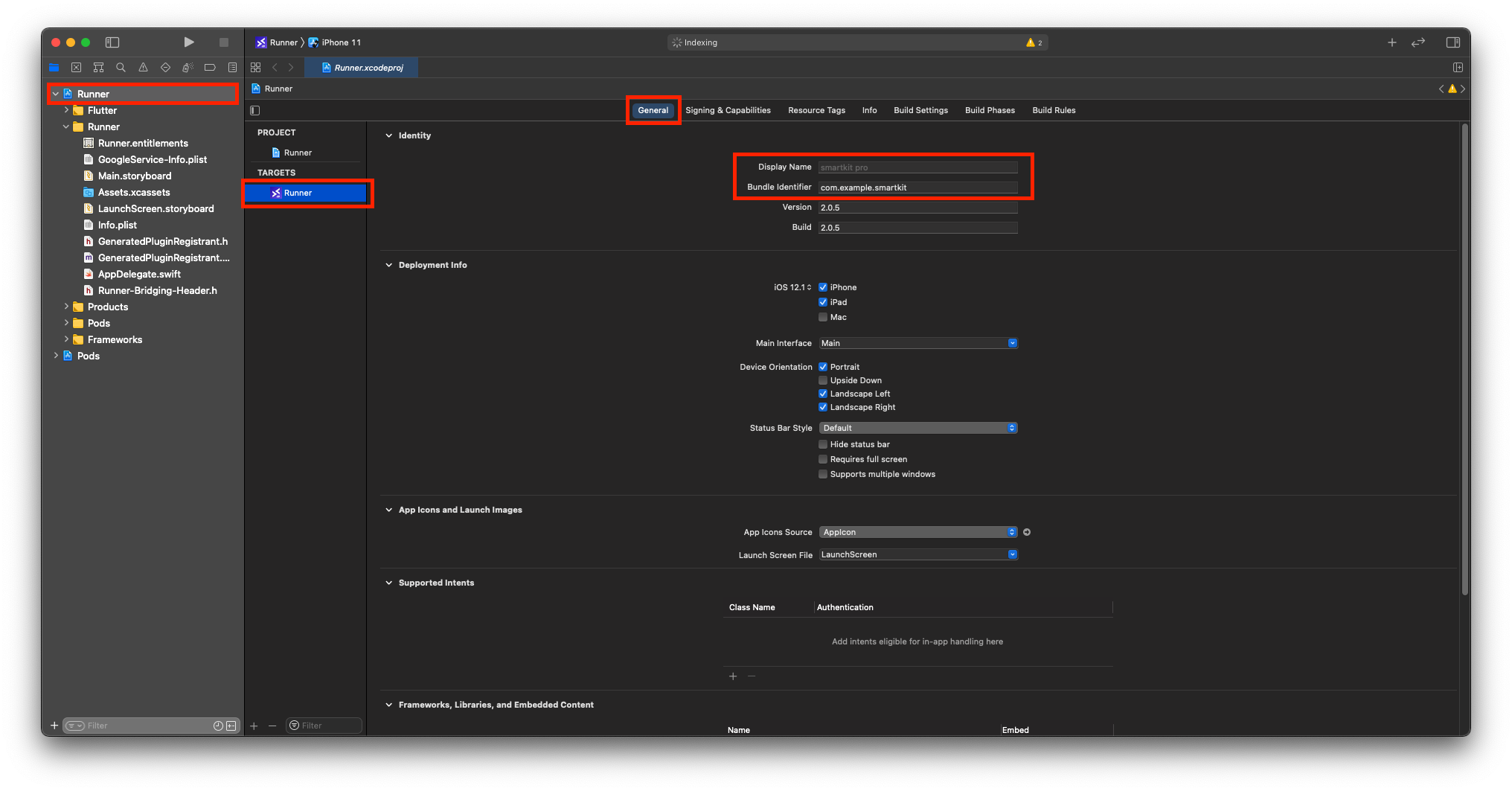
  7. Select Project > Target > Check For Display Name and Bundle Identifier in General Tab.
  8. SmartKitPro
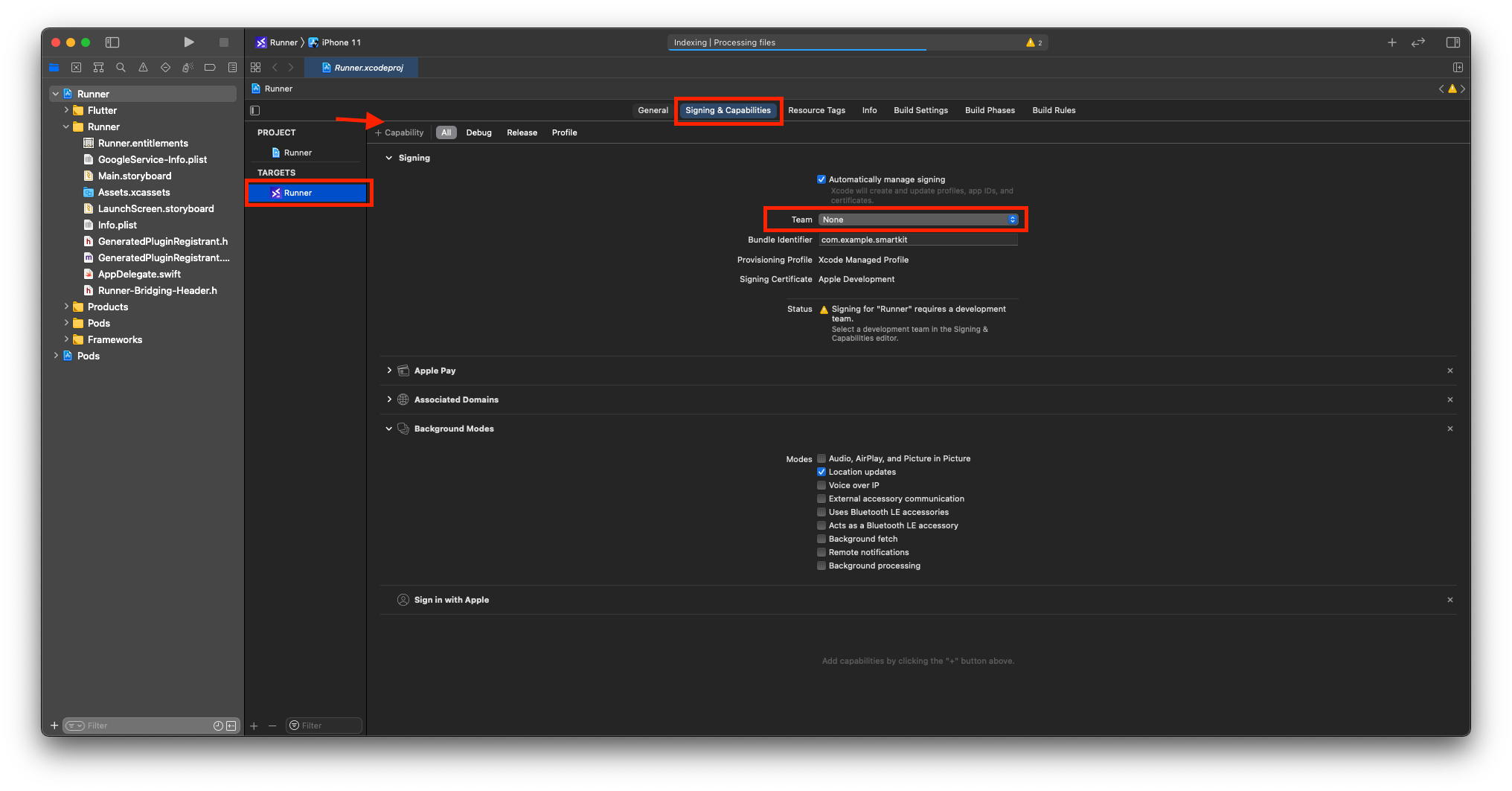
  9. Now go to Signing & Capabilities >Signing > Team - Add Your Team / Apple Developer Account here.
  10. SmartKitPro
  11. Add Following Capabilities according to Requirement of your Project & Respected Packages From Pubspec.yaml file.
    • Sign in with Apple

    • Apple Pay > Add Your merchant ID incase you want to use Apple Pay.

    • Associated Domains > add applinks of your Domain.

    • Background Modes > Location updates
Generate Release APK

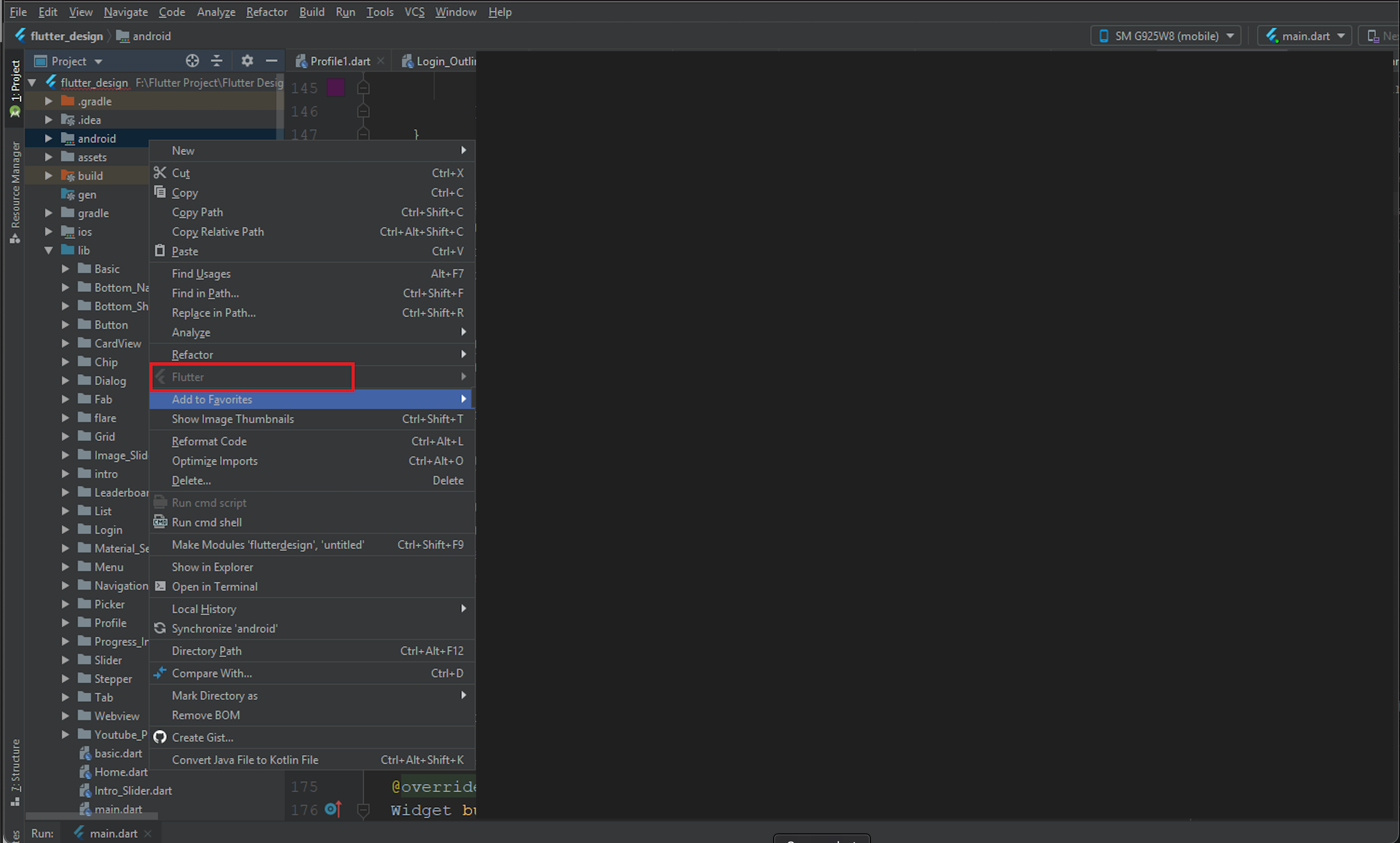
  1. In you android studio, right click on you android module of you flutter project.there is option flutter, click on that inside open in new module.then generate release apk from that new module.

  2. SmartKitPro
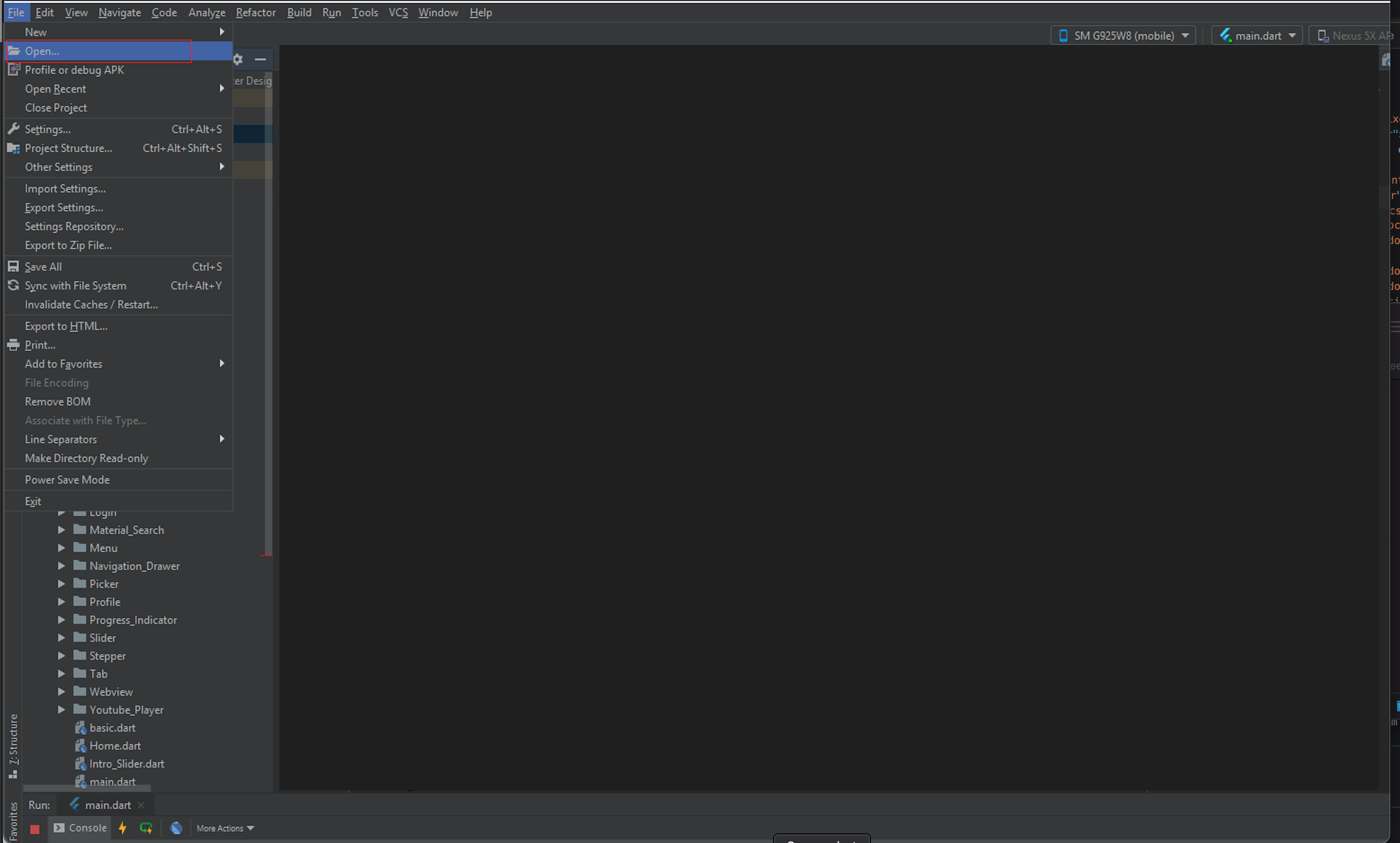
  3. and if in your android studio if flutter option is disable then go to file option in your android studio inside open then locate your flutter project's android module and open it.now generate relase apk from that new module.

  4. SmartKitPro

    SmartKitPro

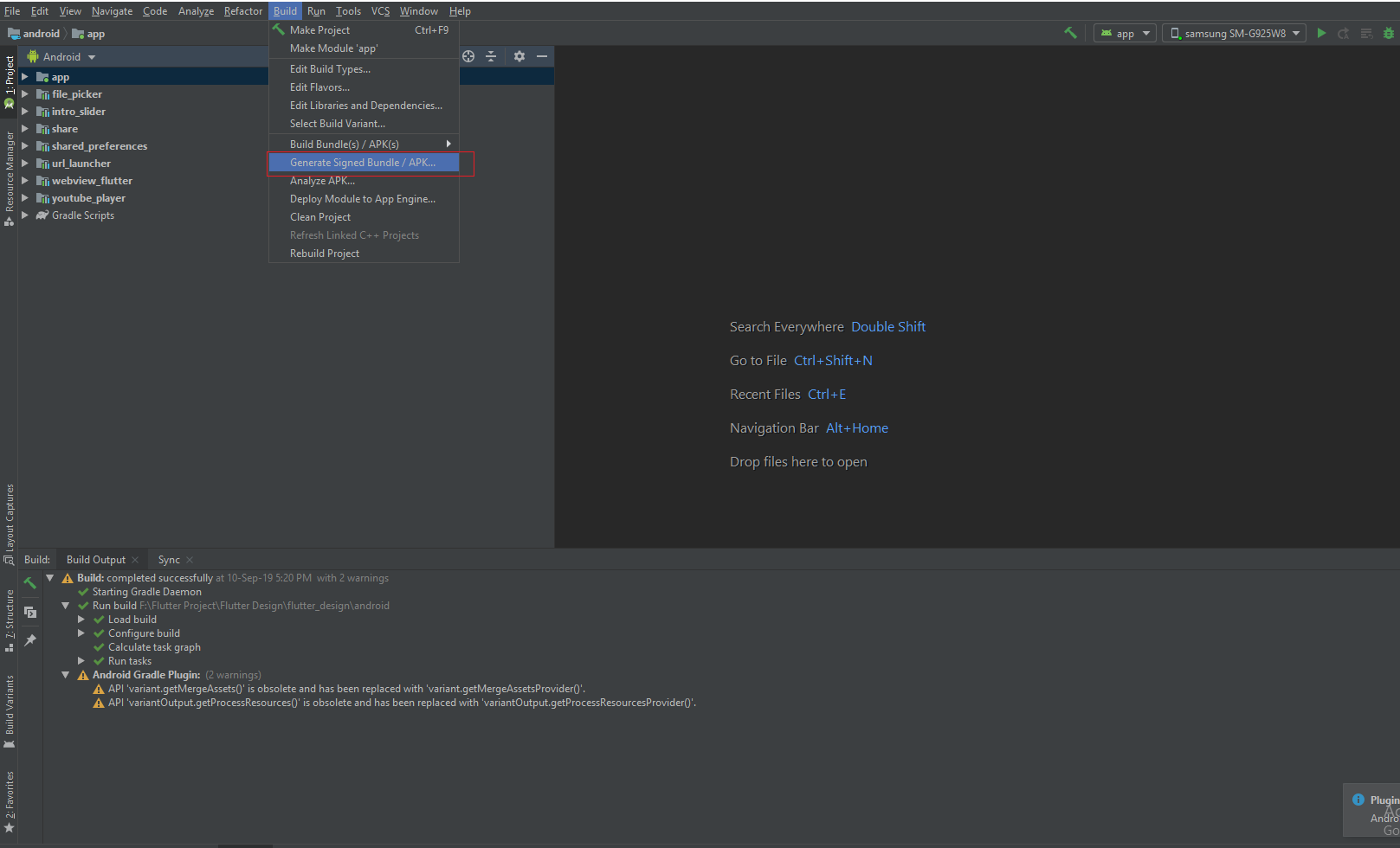
  5. In Build menu there is option generate signed bundle/apk.
  6. SmartKitPro

Steps to Publish iOS App to App Store

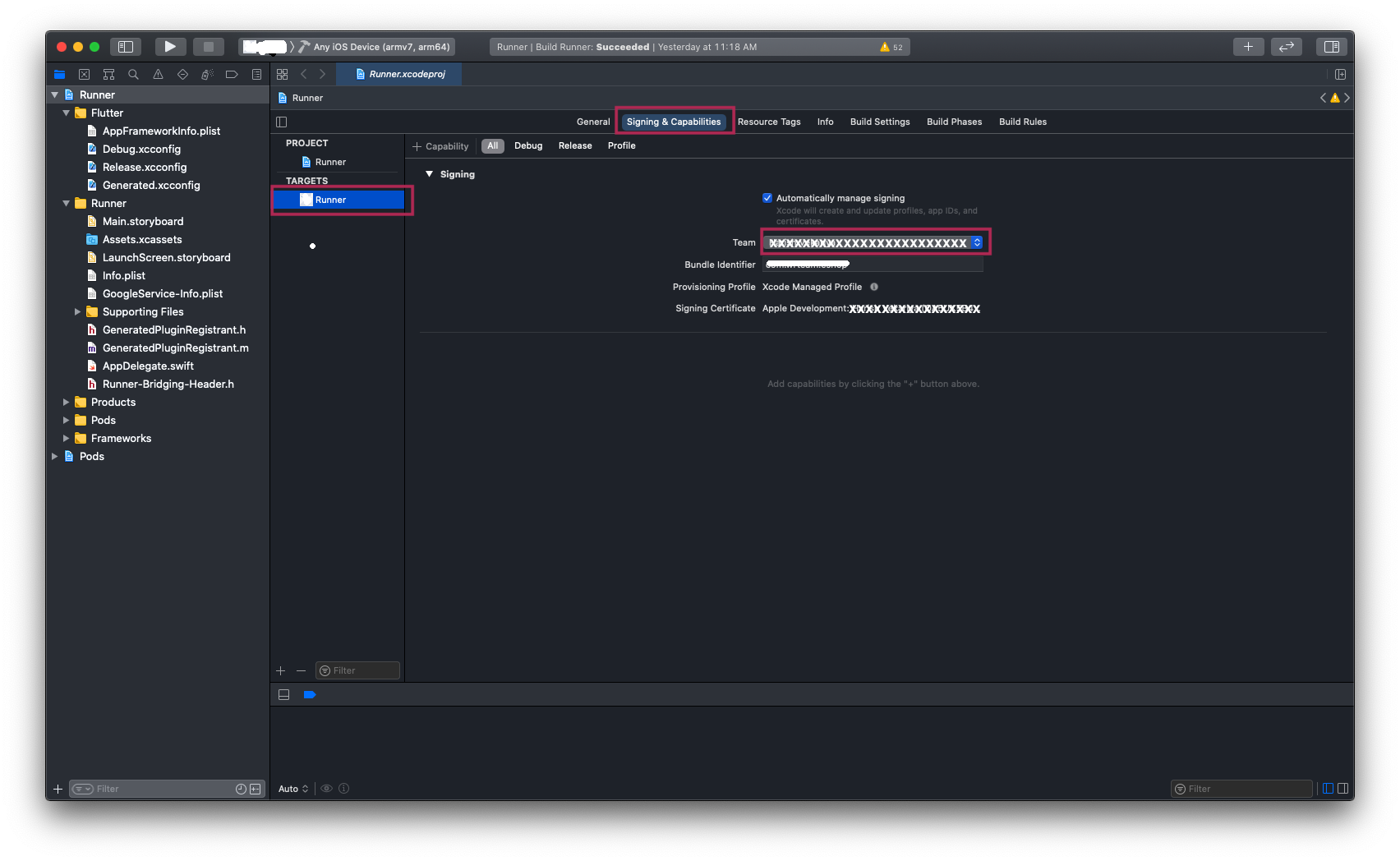
  1. Open your Project's Runner.xcworkspace file in Xcode, and Add your Team [Your Apple Developer ID] and also Insert GoogleService-Info.plist file [Downloaded From Firebase Project] inside folder named Runner.

  2. eShop


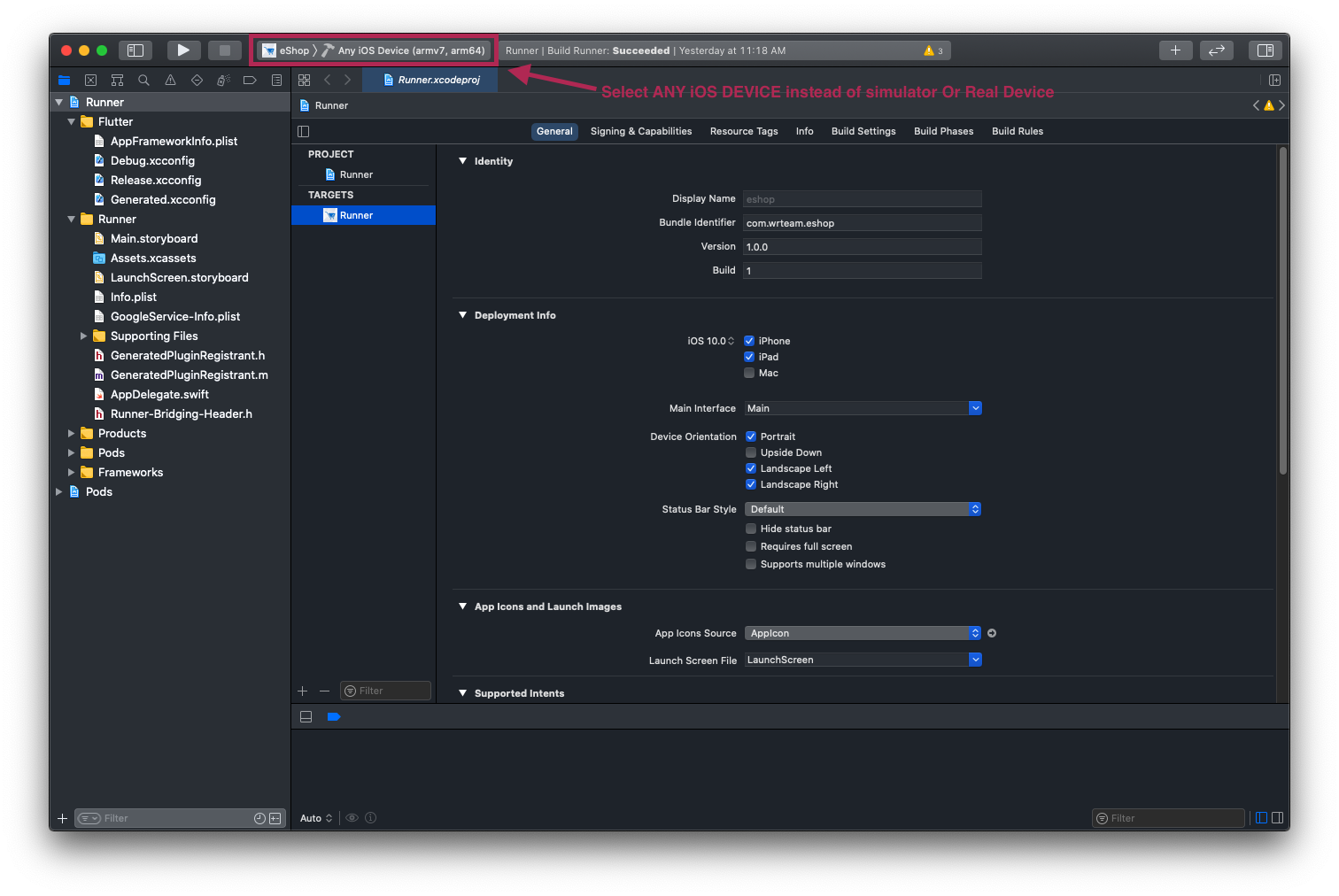
  3. and then Select Any iOS Device (armv7,arm64) as shown in image below.

  4. eShop


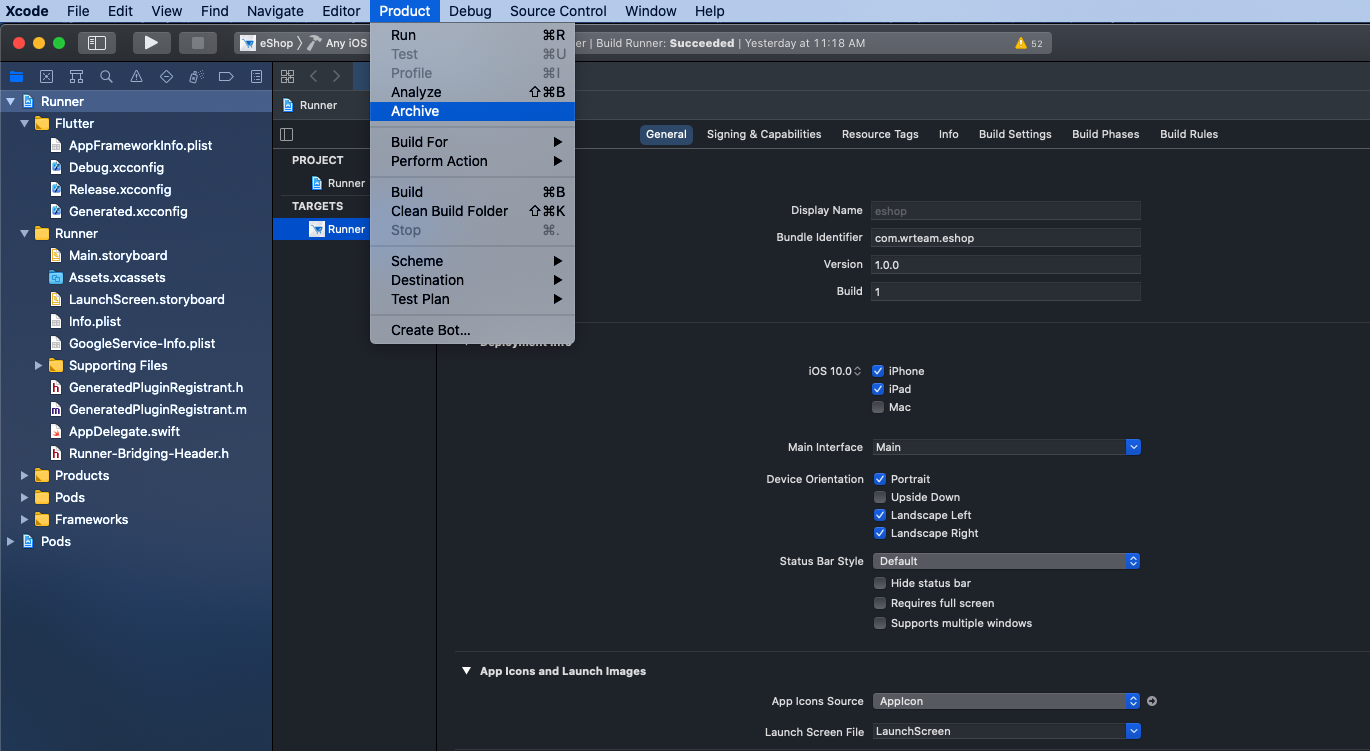
  5. After that Select Archive From Product Menu of Xcode as shown below.

  6. eShop


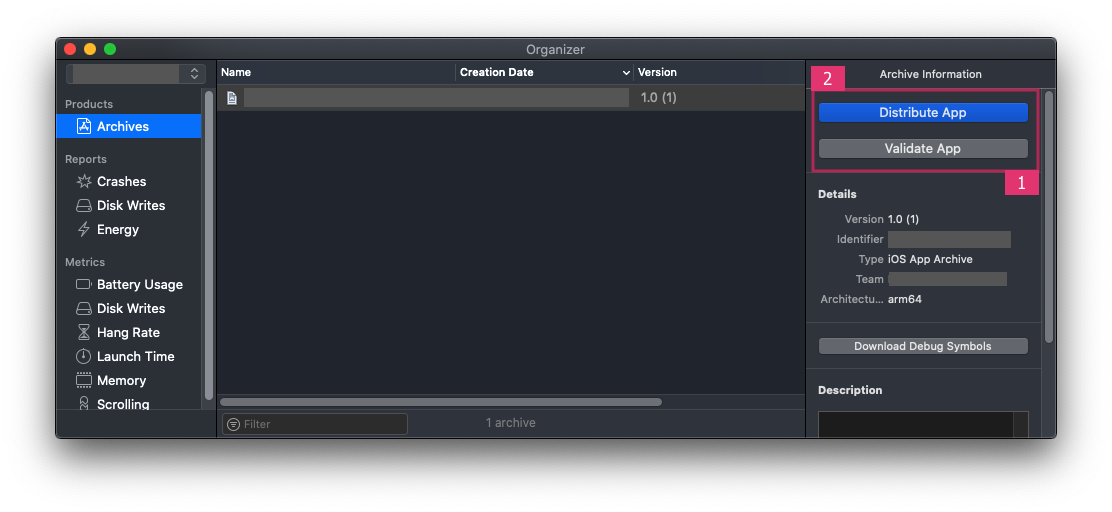
  7. Once Build / Archive Generated, pop up window will be shown. Validate app First, and After Successfull Validation of App, You Can Distribute App to AppStore.
  8. eShop


  9. After SuccessFull Submission of Build File, it will be Reflected to your Apple Developer Account in which we have created app with same Bundle ID.
  10. Click here for Detailed Help
Firebase

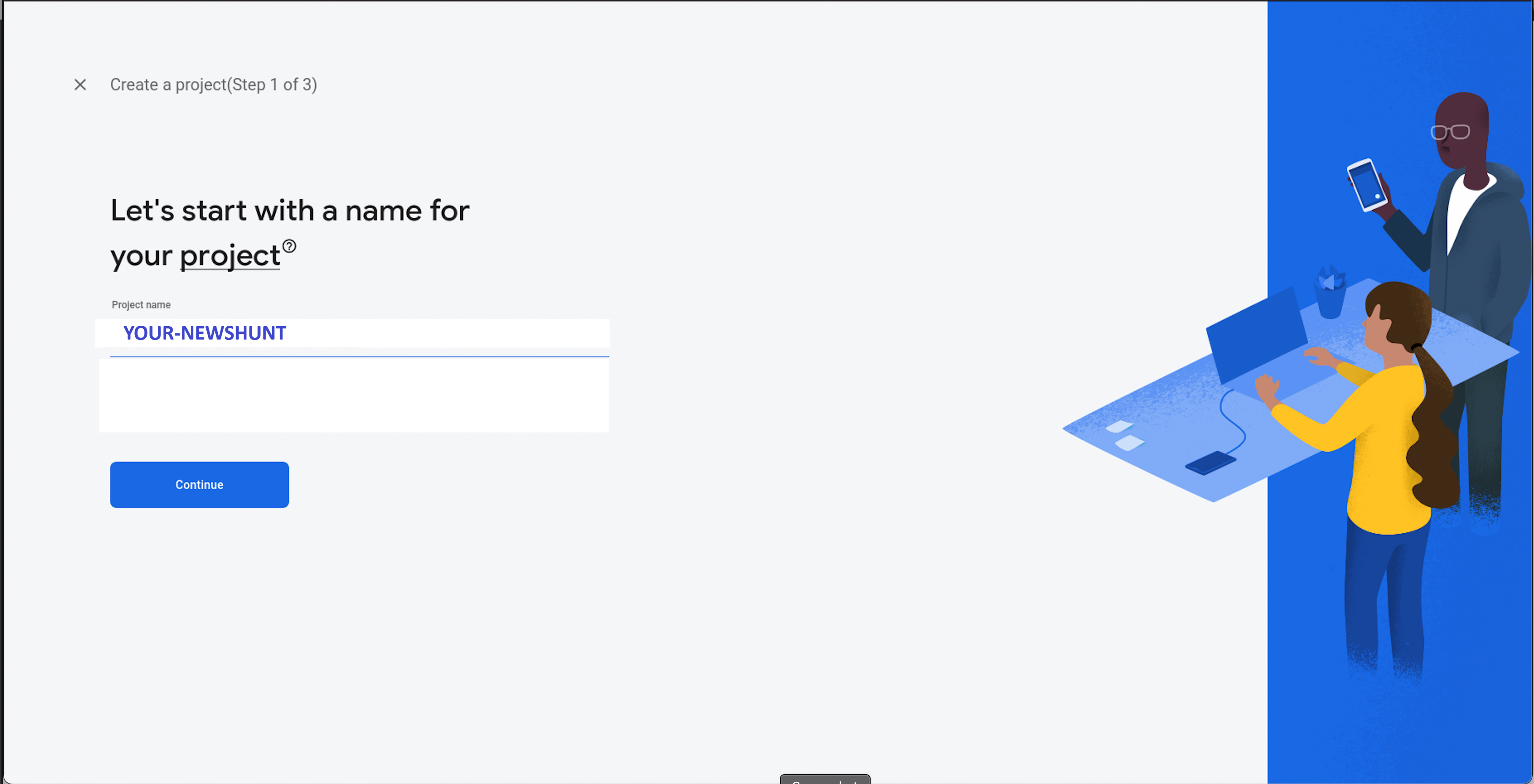
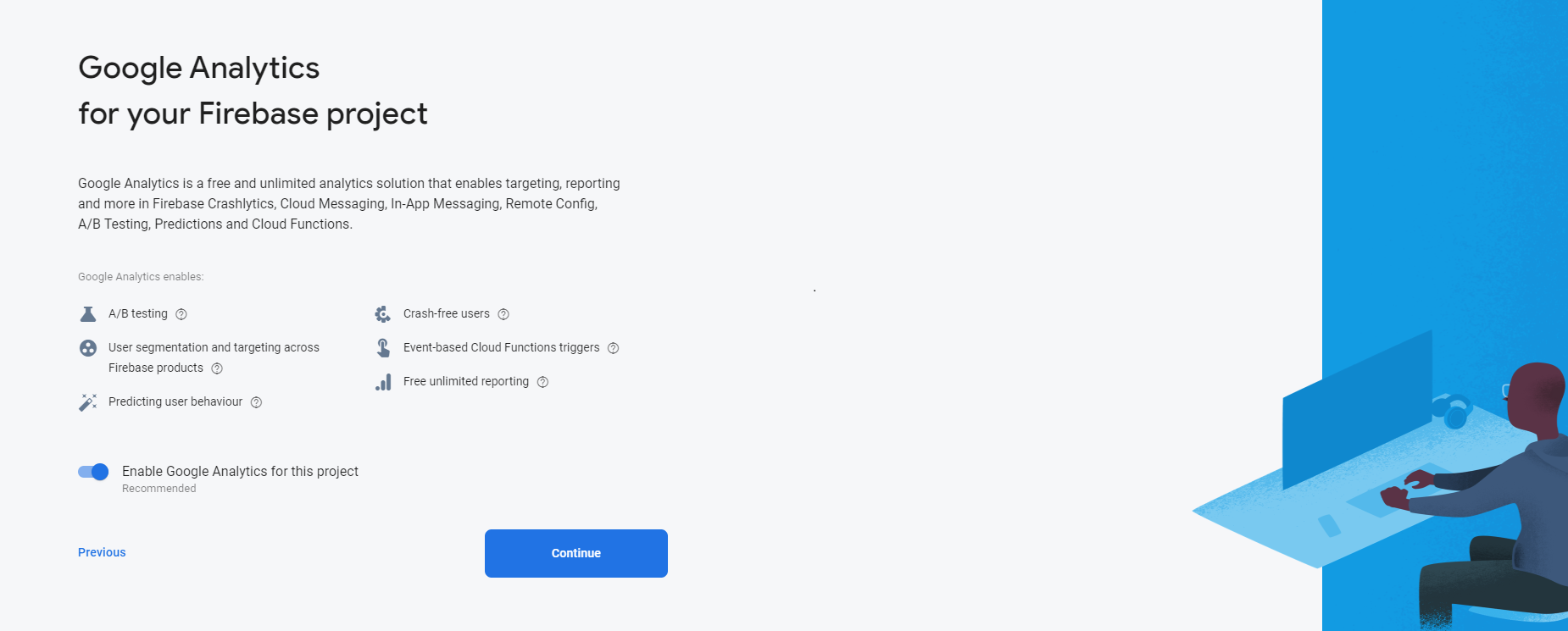
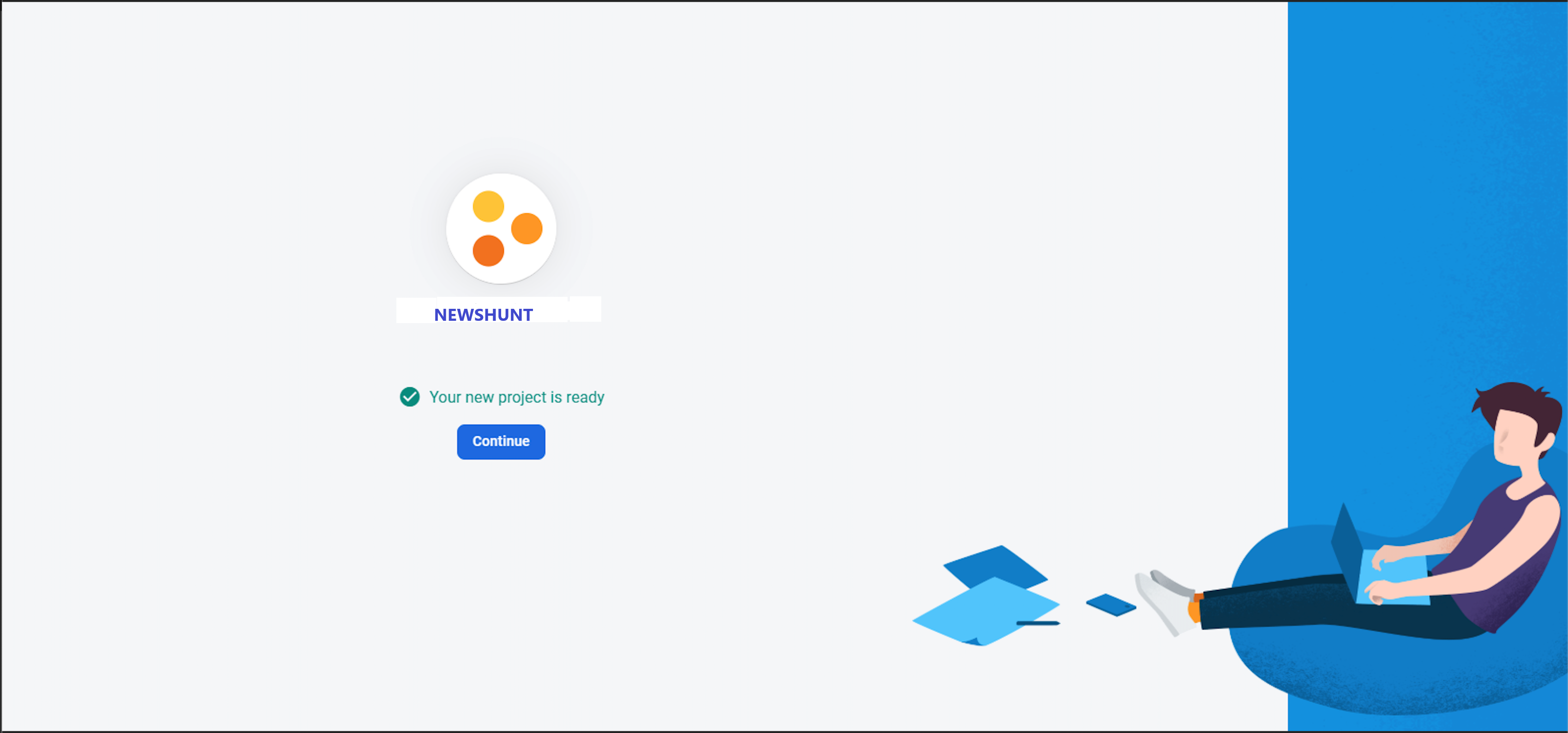
Create Firebase Project for Application.

  • We need Firebase project for Firebase Notification
  • here is steps for craete project.


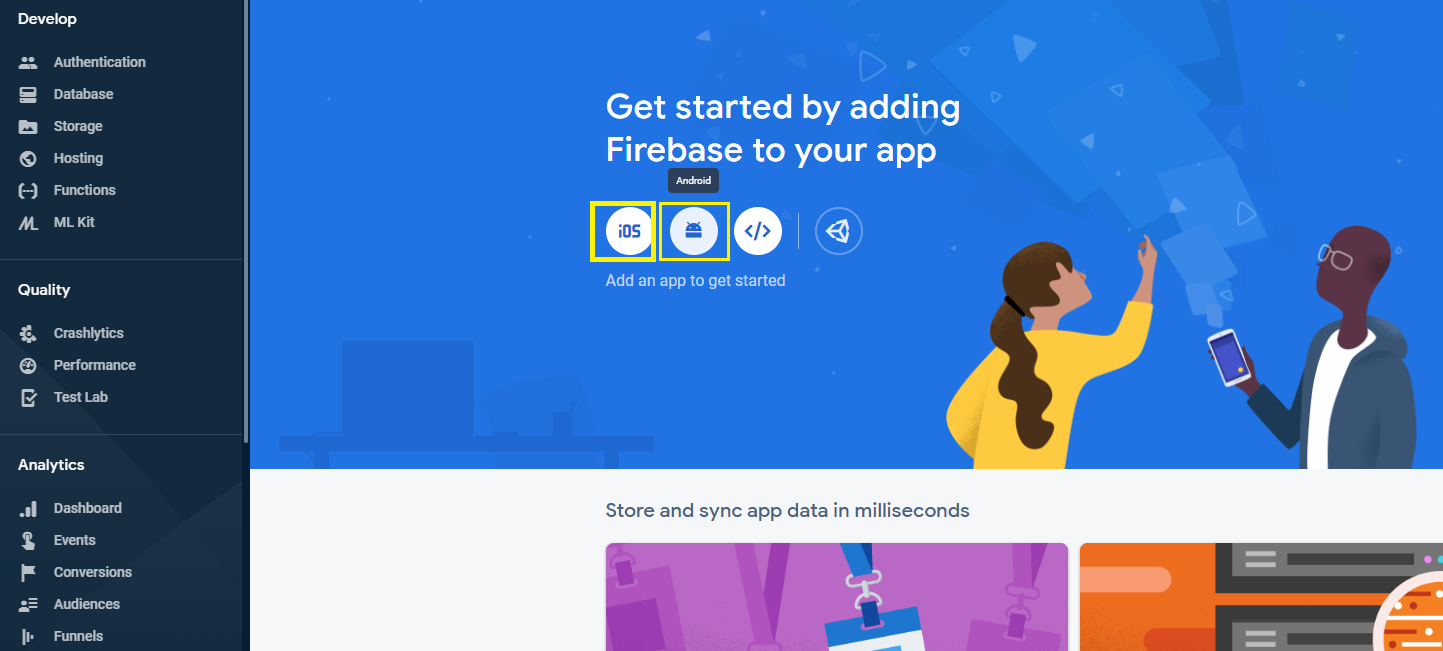
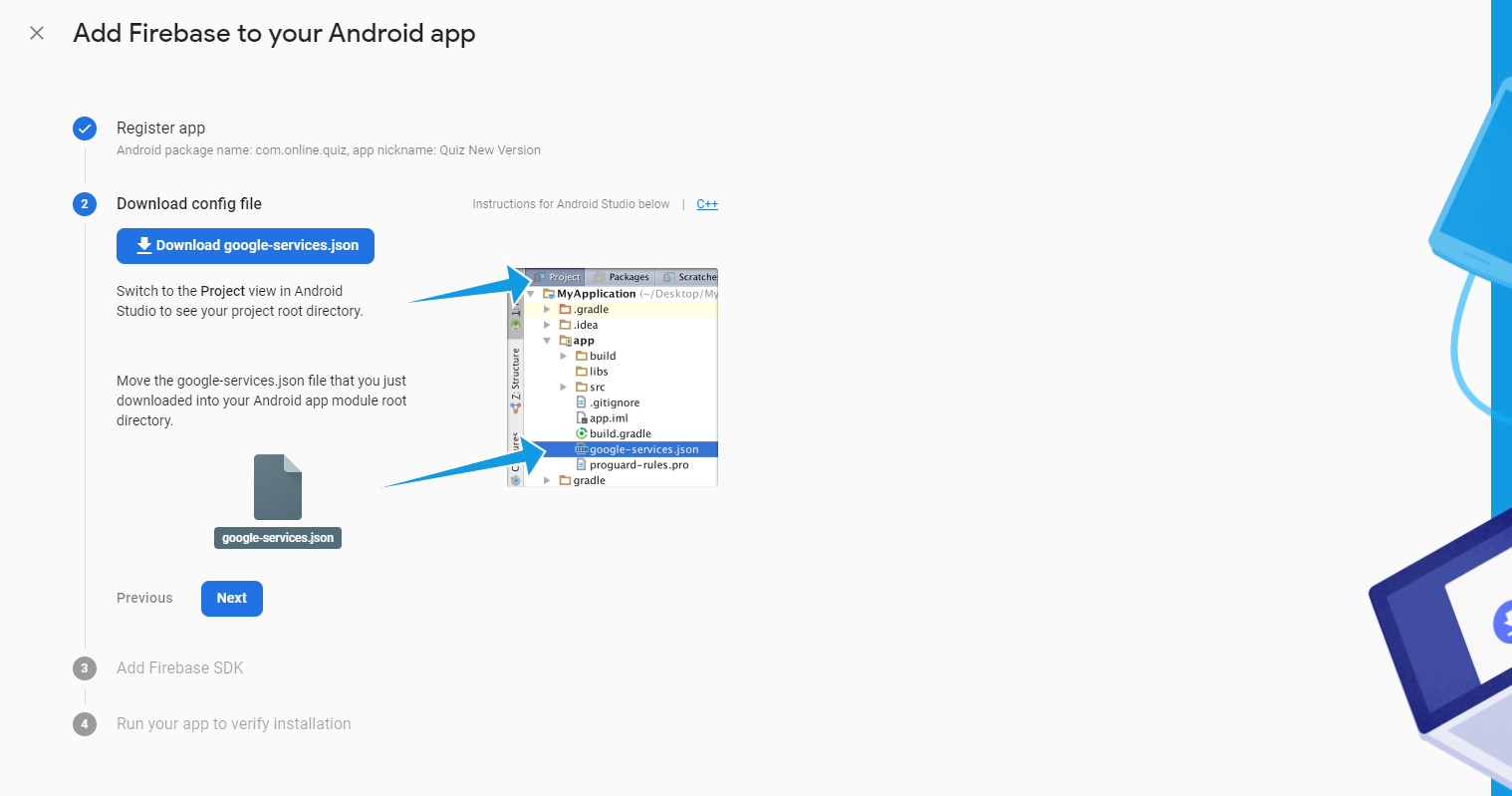
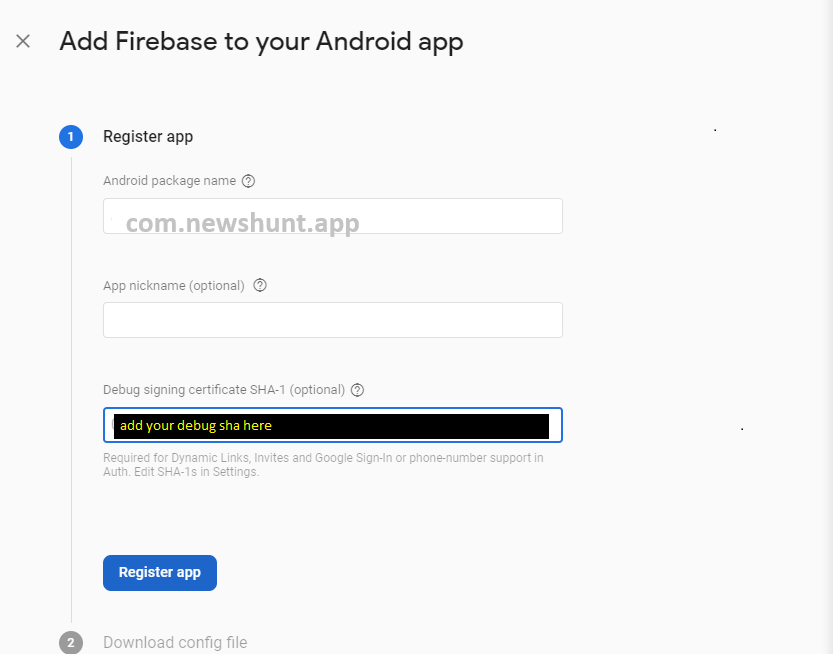
  • Add Firebase to your app

  • Visit this link to know how to get sha-1 and sha-256 key


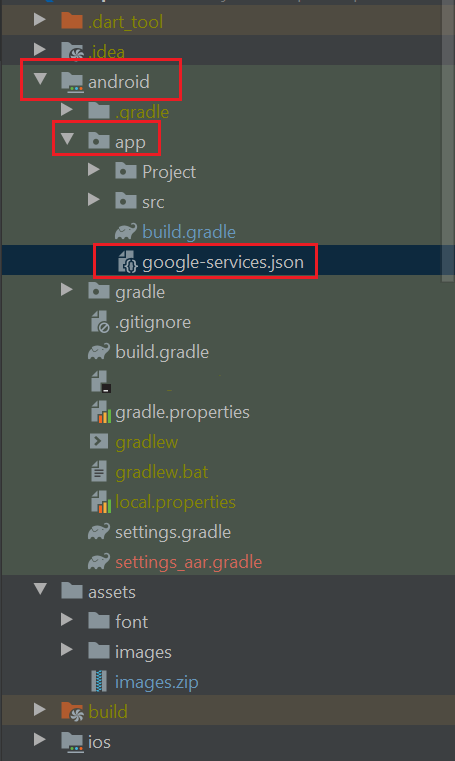
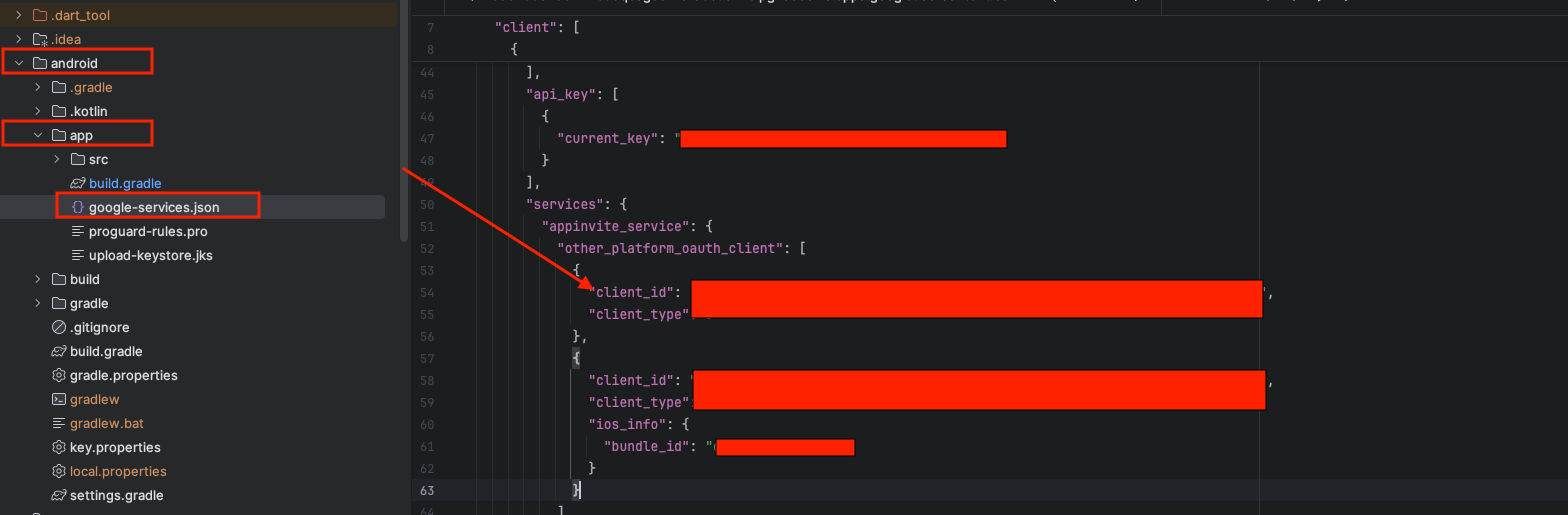
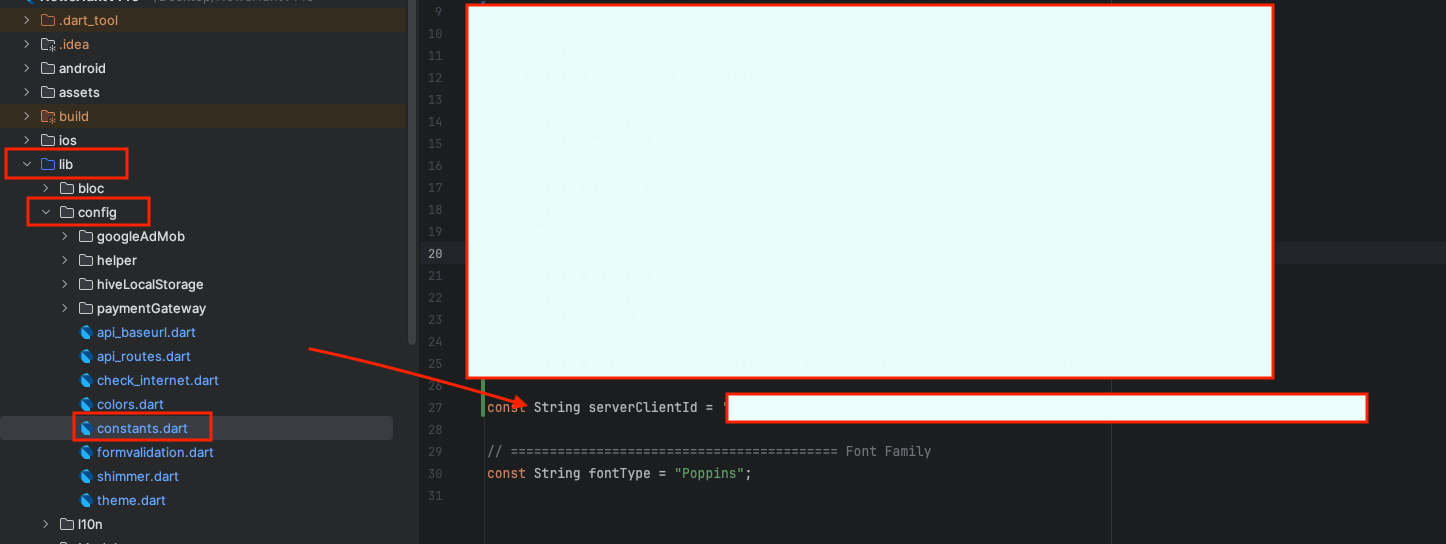
  • Once you have obtained the google-services.json file, copy the client_id from android/app/google-services.json and add it to lib/config/constants.dart


  • IOS

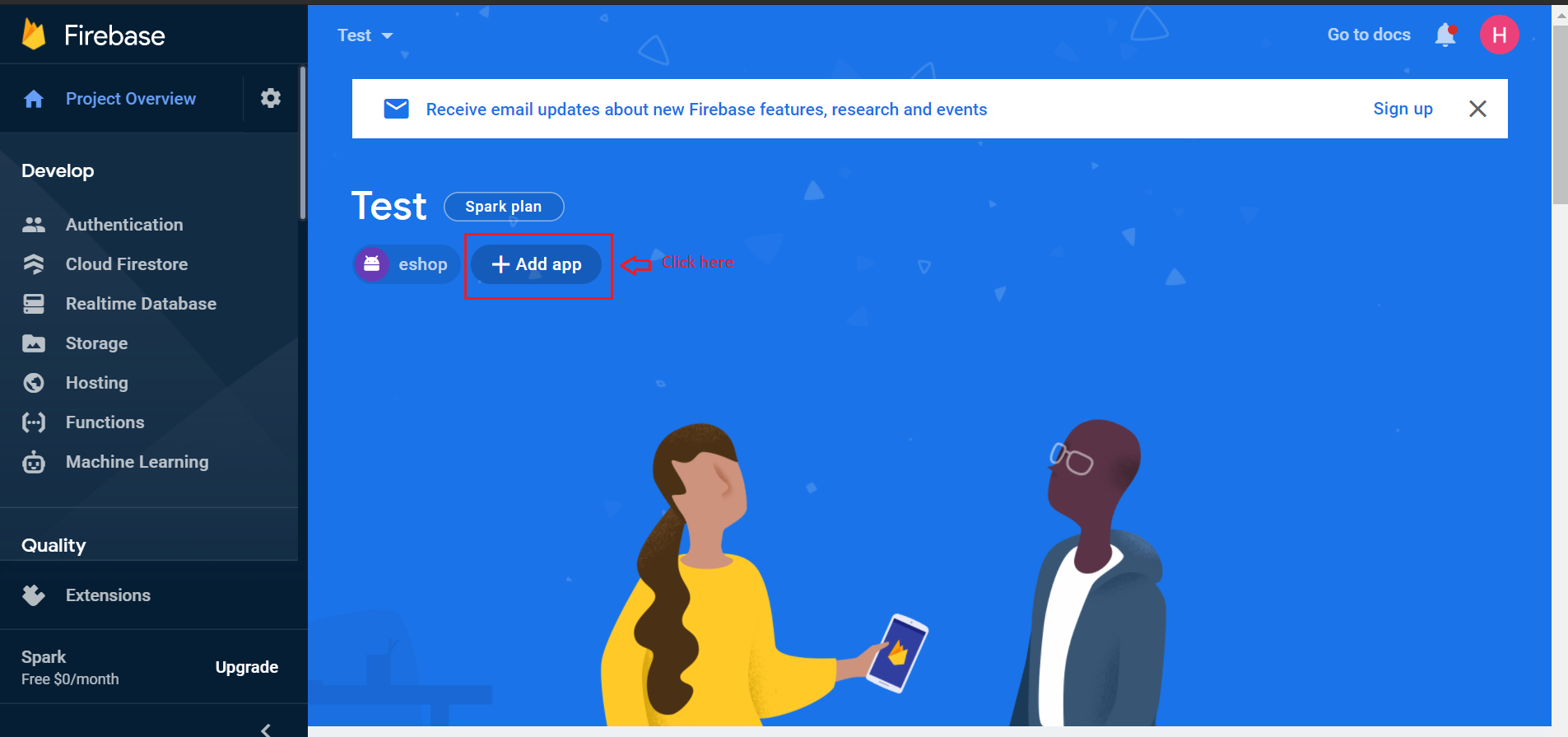
  • for ios,perform below step. now click on add app.


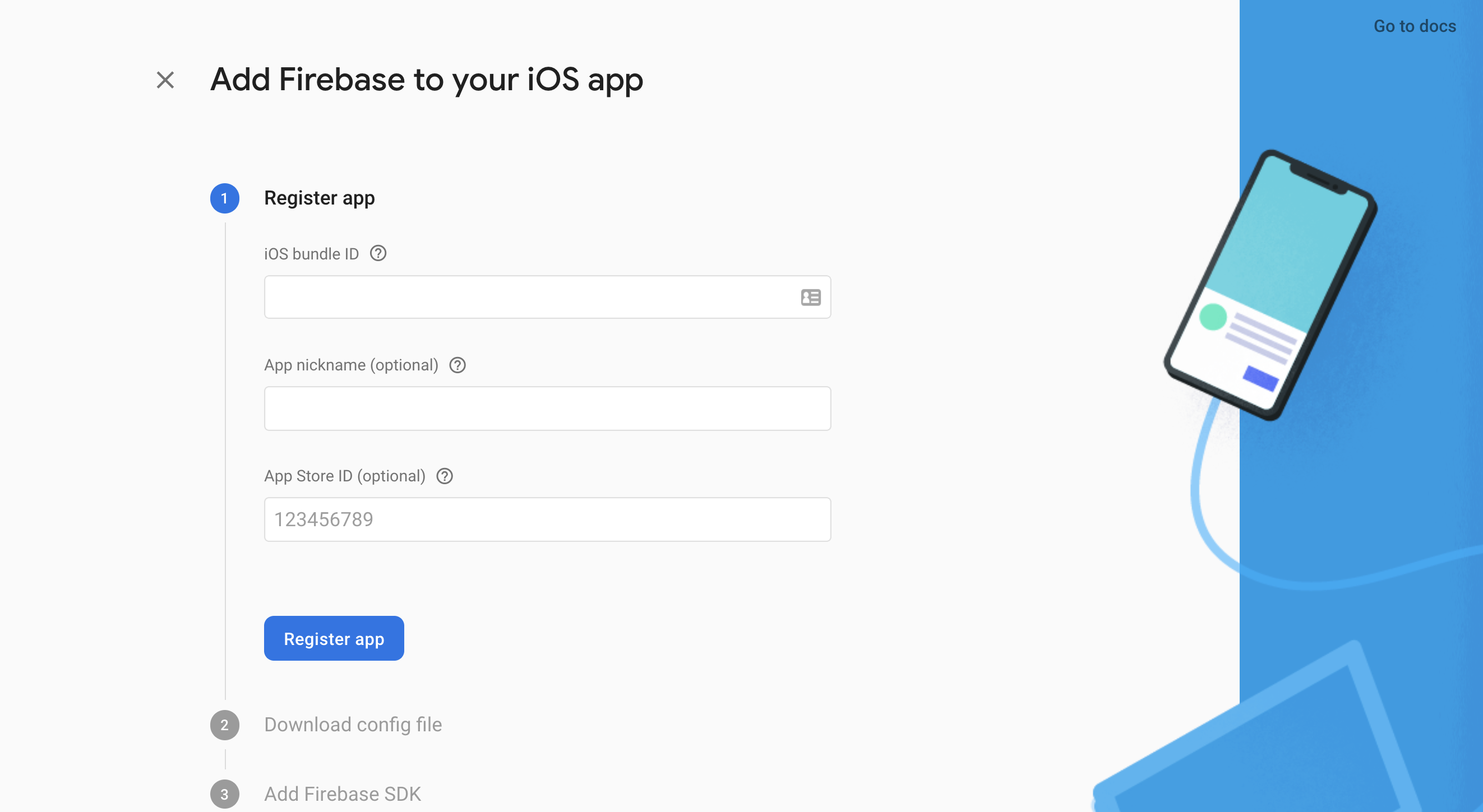
  • and then click on ios button.in this same as android step will be here, you have to enter your appname.then next


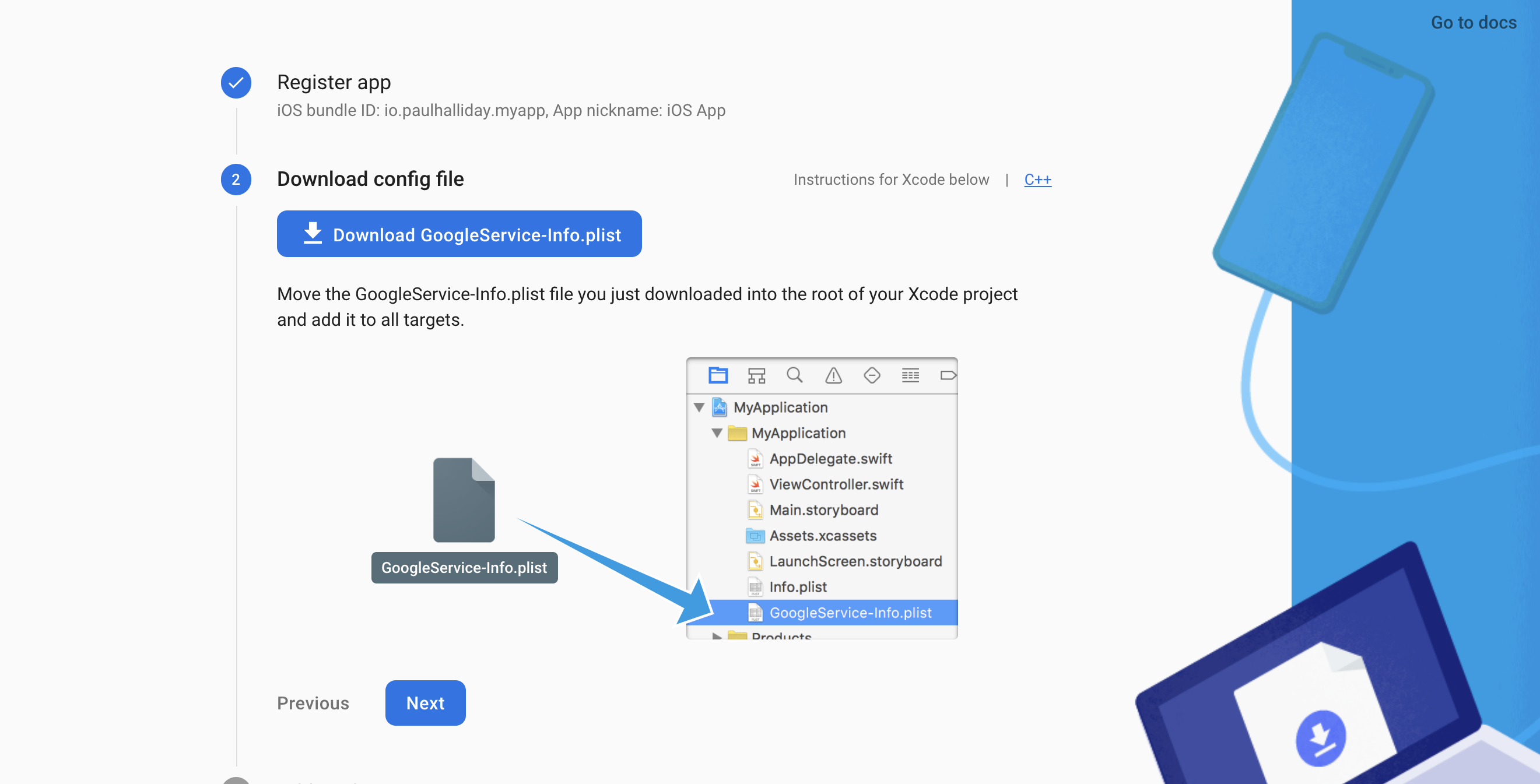
  • on next screen download google service info.plist file.


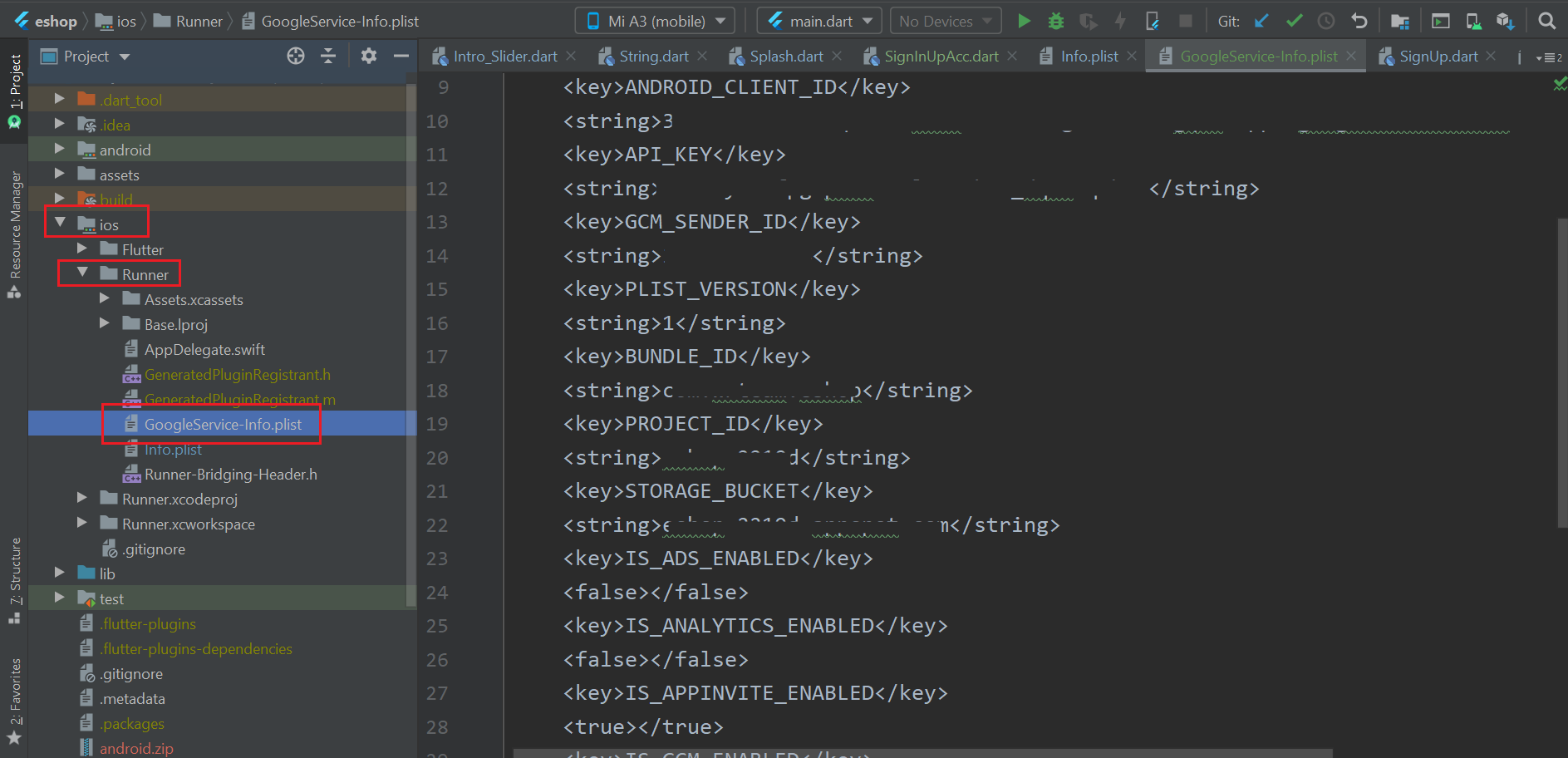
  • now copy the content of that file and replace in ios > Runner > GoogleServie-info.plist
    • now press next next on firebase console and that's it your project is created on ios.
      • Move or copy GoogleService-Info.plist into the [my_project]/ios/Runner directory.
      • Open Xcode, then right-click on Runner directory and select Add Files to "Runner".
      • Select GoogleService-Info.plist from the file manager.
      • A dialog will show up and ask you to select the targets, select the Runner target.

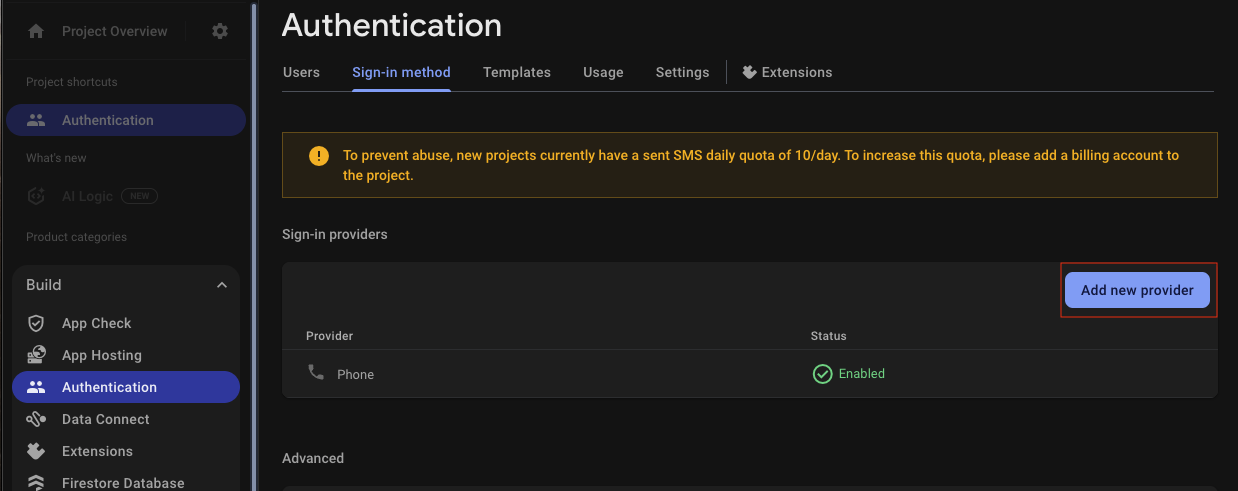
    • Go to Build > Authentication > Sign-in method. You should see a screen like the one below:

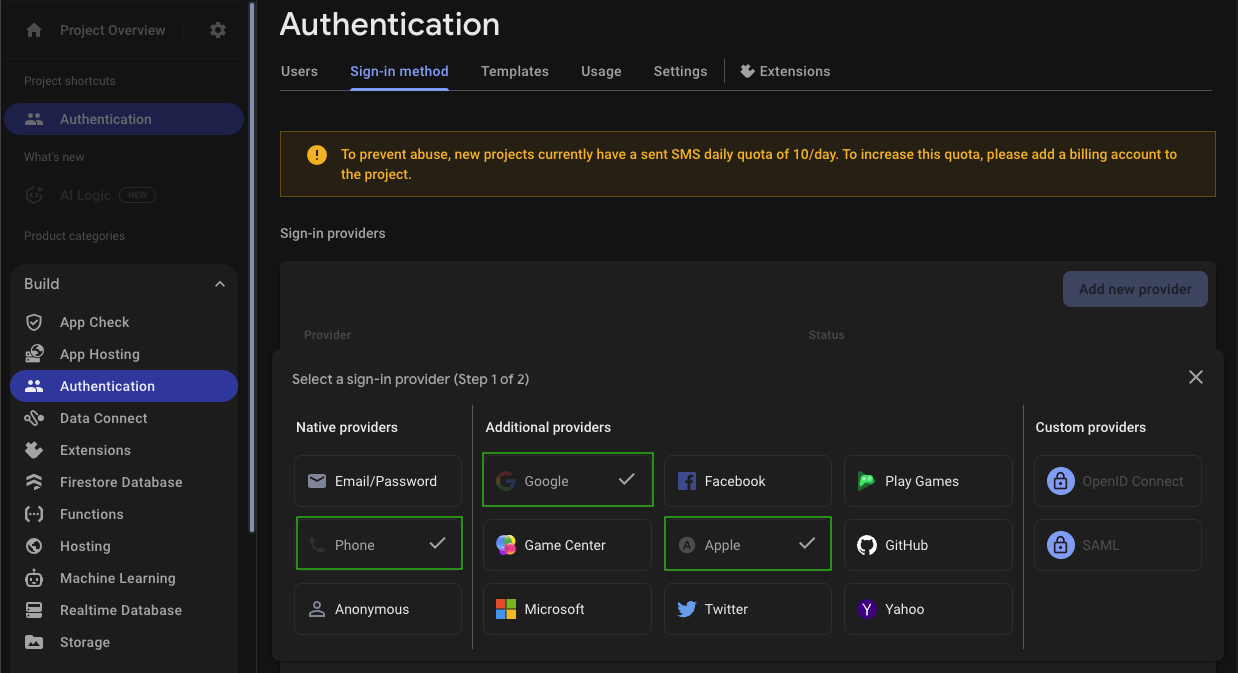
    • Click on "Add new provider" and select the providers shown in the image below:


    Generate SHA Keys for Firebase

    • Open your terminal and run the following command:
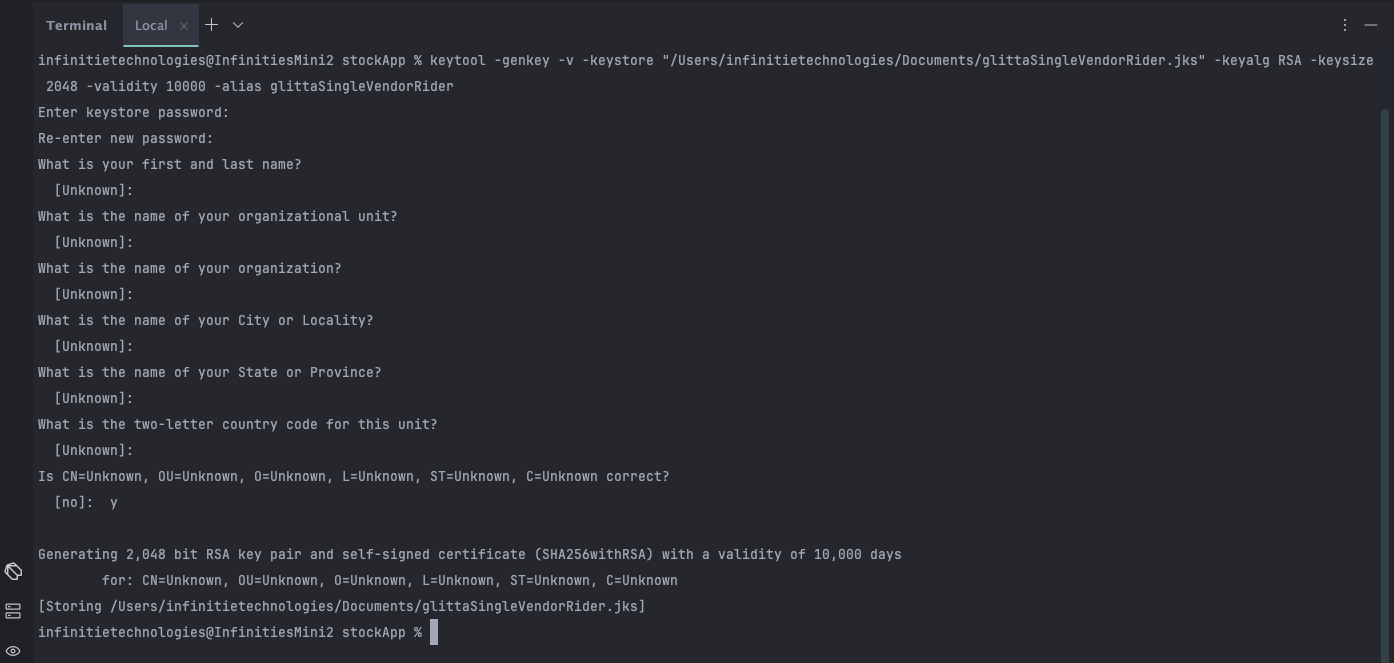
    • keytool -genkey -v -keystore "your_path_to_store_jks" -keyalg RSA -keysize 2048 -validity 10000 -alias your_choosen_alias
    • If possible, store the keystore file at the following location by replacing your_path_to_store_jks with this full path:
      /Users/user_name/Desktop/news_app/android/app/your_jks_keystore_name.jks
      Note: Make sure to replace user_name and your_jks_keystore_name.jks with your actual macOS username and keystore filename.
    • Enter the keystore password when prompted, then re-enter it to confirm.
    • You will be asked for personal details (name, organization, etc.). You can simply press Enter to skip all of them.
    • When asked "Is CN=Unknown, OU=Unknown, ... correct?", type y to confirm.
    • If you made a mistake or want to enter details, type no to re-enter the information.
    • If successful, you’ll see this confirmation message.

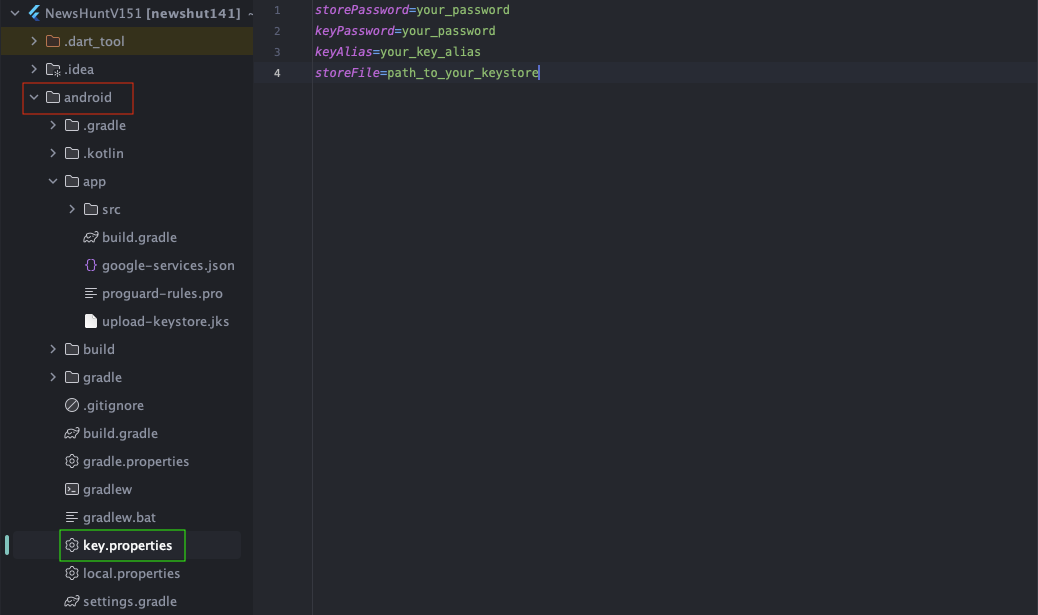
    • After that, create a key.properties file inside the android folder with the following content:

    • Open your terminal, navigate to the android directory of your project, and run the following command:
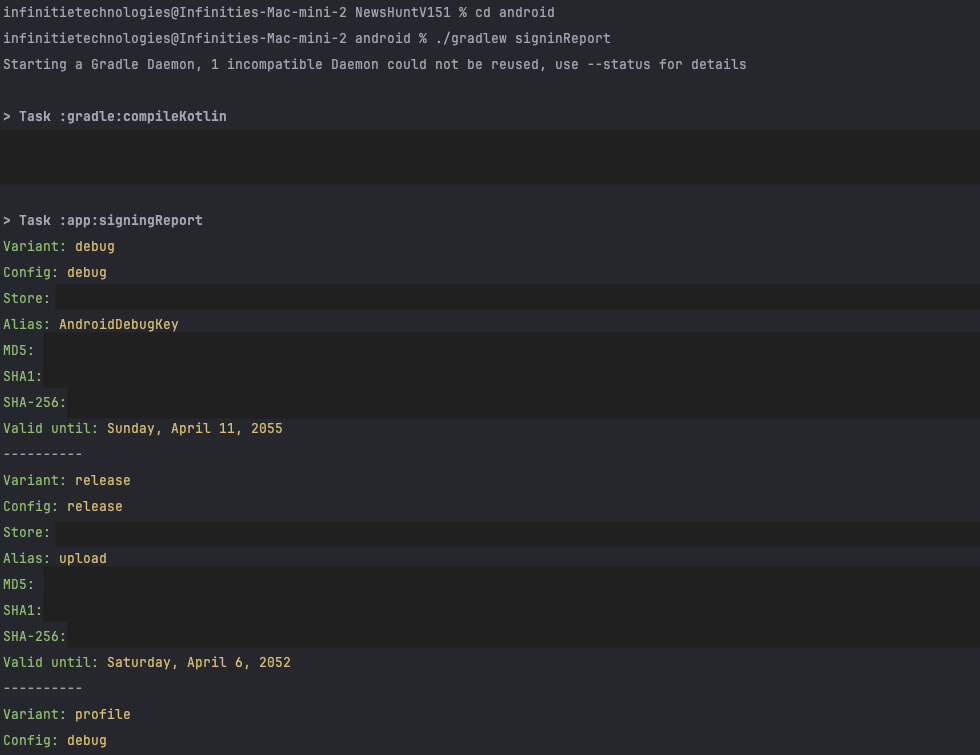
      ./gradlew signingReport
    • The terminal will display a lot of information. Look for the section starting with: Task :app:signingReport
      This section appears near the top. Under it, you'll find two build variants: debug and release.
    SHA keys output from terminal
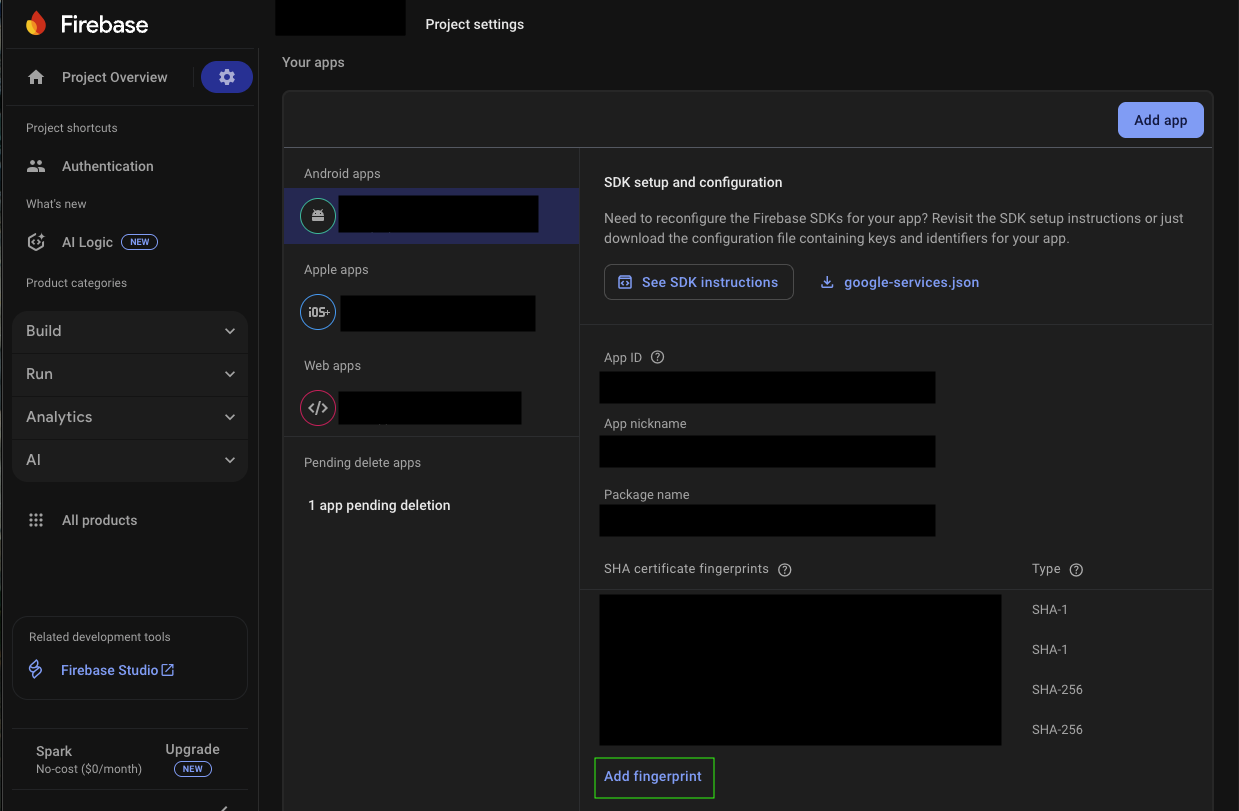
    • Copy both SHA-1 and SHA-256 keys from debug and release variants. Add them to your Firebase project under Project Settings > General > Your apps > Add Fingerprint.
    Add SHA keys to Firebase
    • Note: Once your app is live on the Google Play Console, you must also add the SHA-1 and SHA-256 keys from the Play Console to Firebase. This ensures proper integration with Firebase services like Google Sign-In and Dynamic Links.
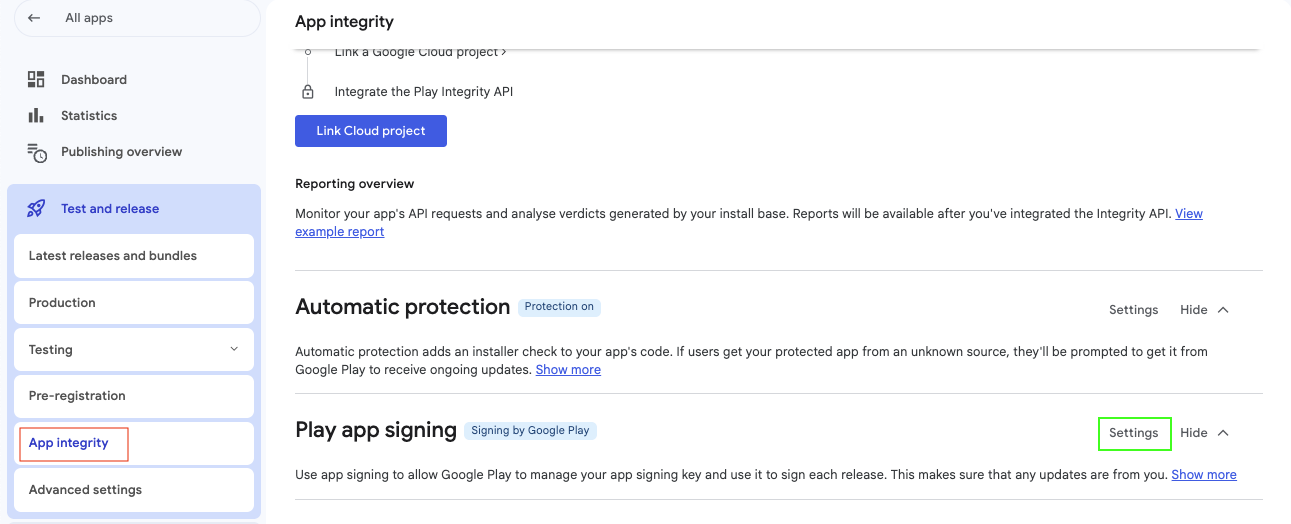
    • To find these keys, go to your app in the Play Console and navigate to: Release > App Integrity.
    • Under Play App Signing, click on the “View signing certificate” or the Settings to access your SHA keys.
    Add SHA keys from Google Play Console to Firebase
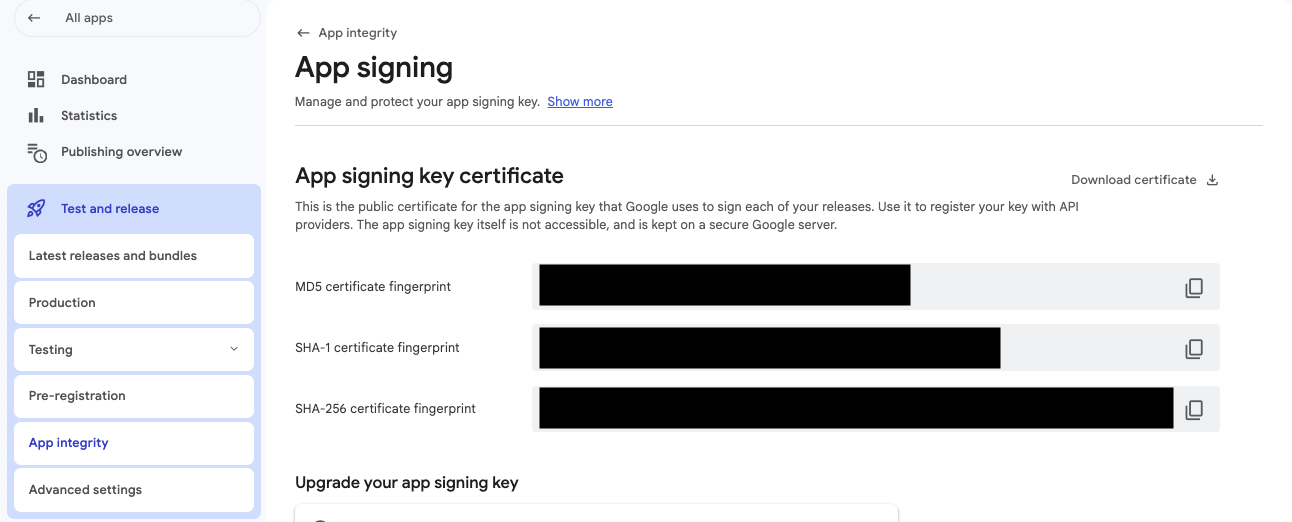
    • On the App Signing page, you will find both the SHA-1 and SHA-256 keys. Copy these and add them to your Firebase project under Project Settings > General > Your Apps.
    Firebase Project Settings - Add SHA Keys

    Notification

    This section explains how to configure push notification services for iOS devices in your application.

    Generate Keys and get .p8 file

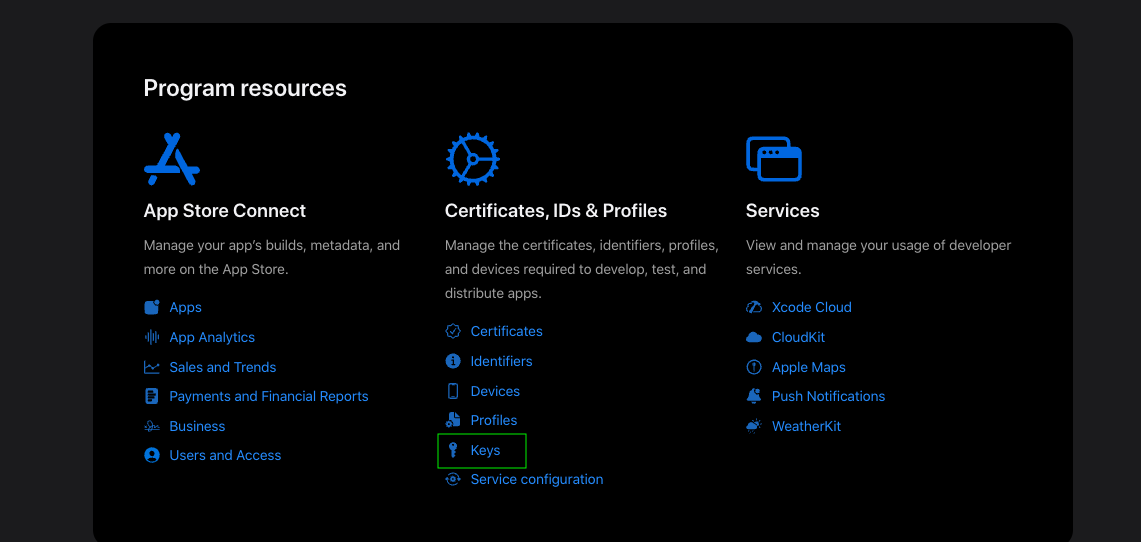
    • Visit Apple Developer Account and log in with your Apple ID. Once logged in, navigate to the Certificates, Identifiers & Profiles section. Click on “Keys”.

    • In the Keys section, you'll see a list of existing keys (if any). If you already have a key that supports push notifications, you can reuse it. Otherwise, click on the “+” button next to “Keys” to create a new one.

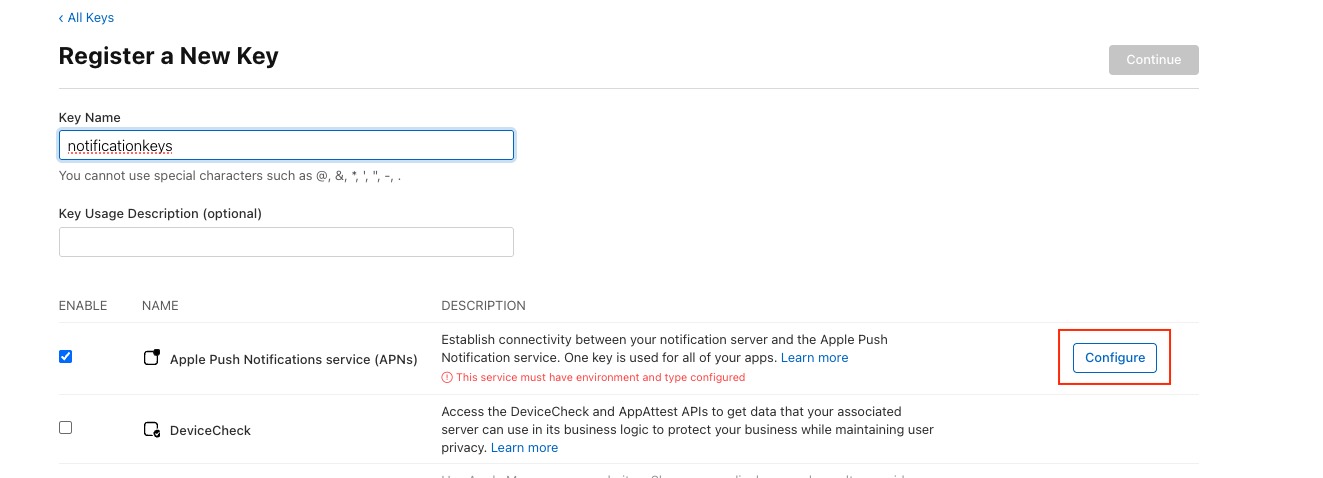
    • On the Register a New Key page:
      • Enter a name for the key.
      • (Optional) Add a description to help identify the key later.
      • Enable Apple Push Notification service (APNs) by selecting the checkbox.
      • Click on “Configure”.

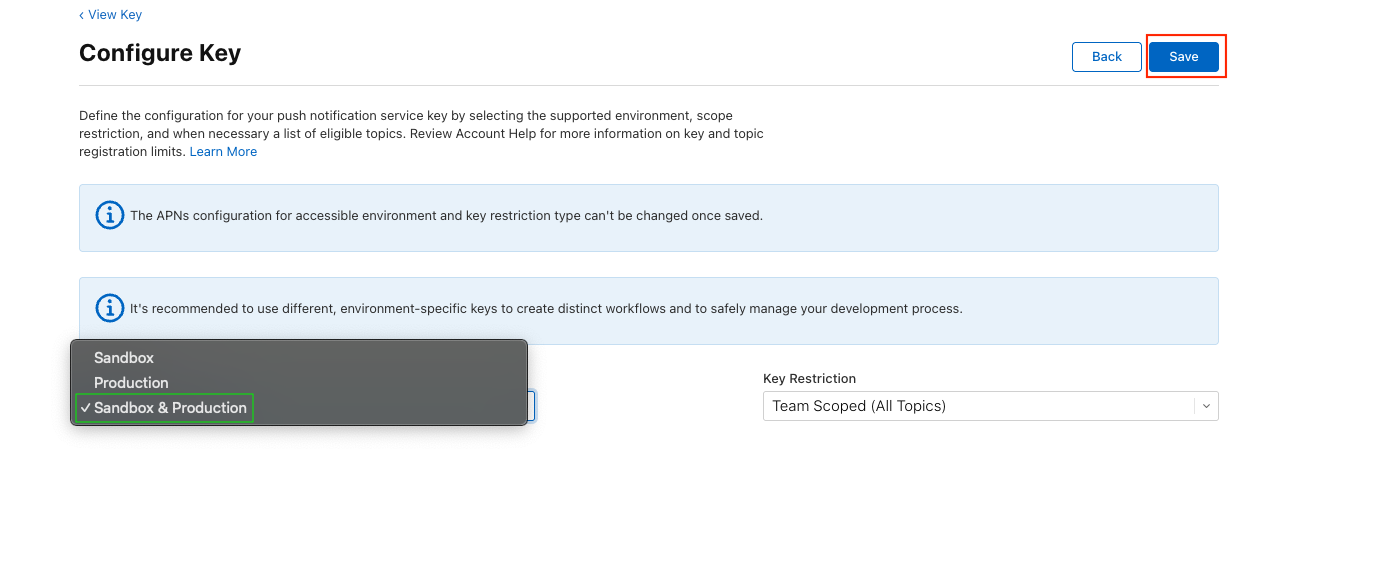
    • On the Configure Key page:
      • From the dropdown menu labeled Environment, select “Sandbox & Production”.
      • Click on “Save”.

    • You will be redirected back to the Register a New Key page. Click the “Register” button to proceed.

    • After registration, you will be able to download the key file. Click “Download” to save the .p8 file to your system.
    • Note: This file will only be available to download once, so store it securely.
    • Note: You can use this single key for all iOS apps under your Apple Developer account. There's no need to generate a new key for each app.

    Configure .p8 file to Firebase

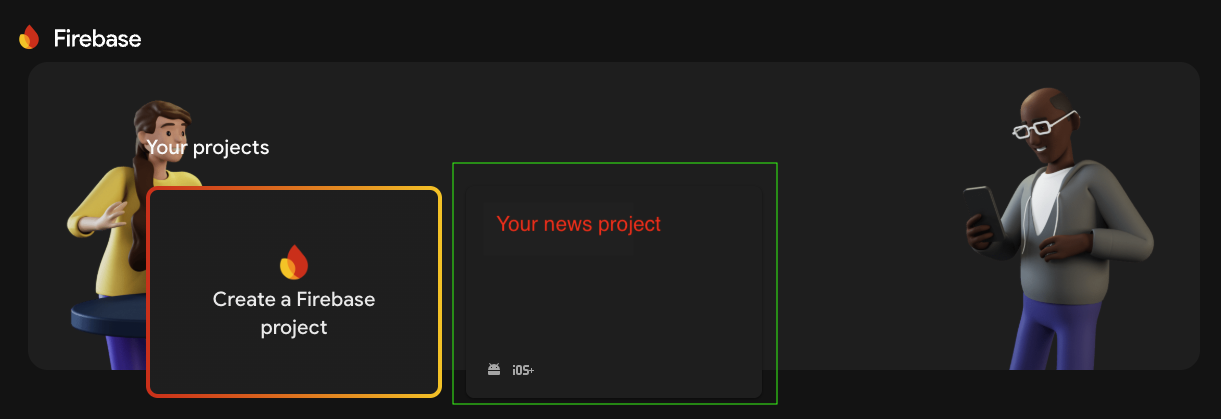
    • Go to the Firebase Console and select your project.

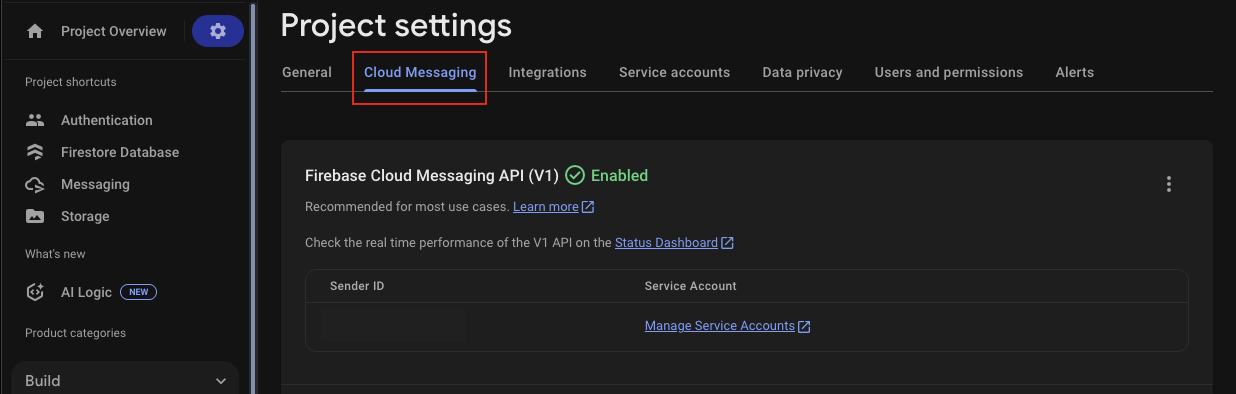
    • Navigate to Project Settings by clicking the gear icon, then go to the Cloud Messaging tab.

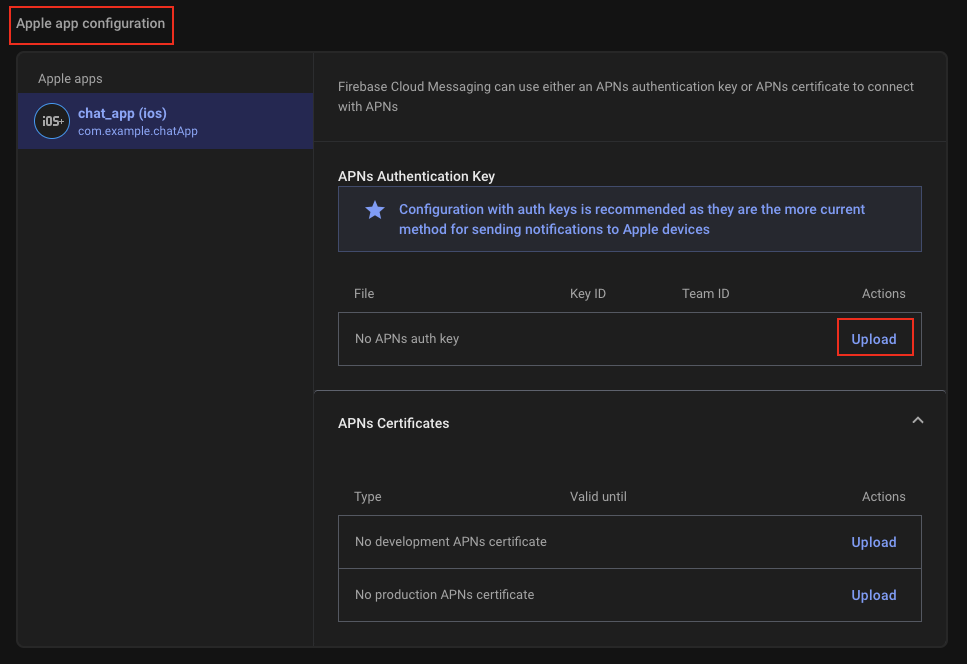
    • Scroll down to the Apple app configuration section.
    • In the APNs authentication key section, click the Upload button.

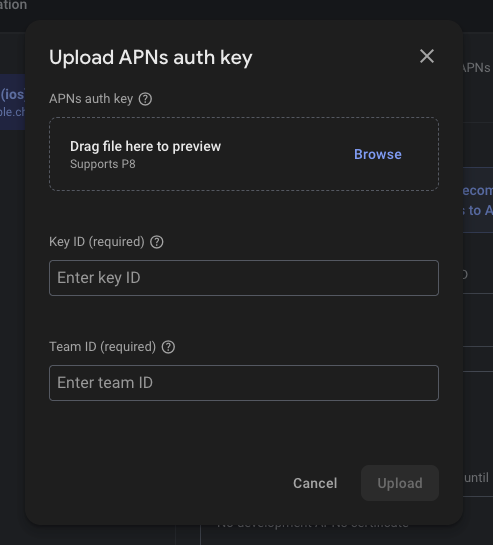
    • A dialog will appear. Upload your .p8 file, then enter your Key ID and Team ID.

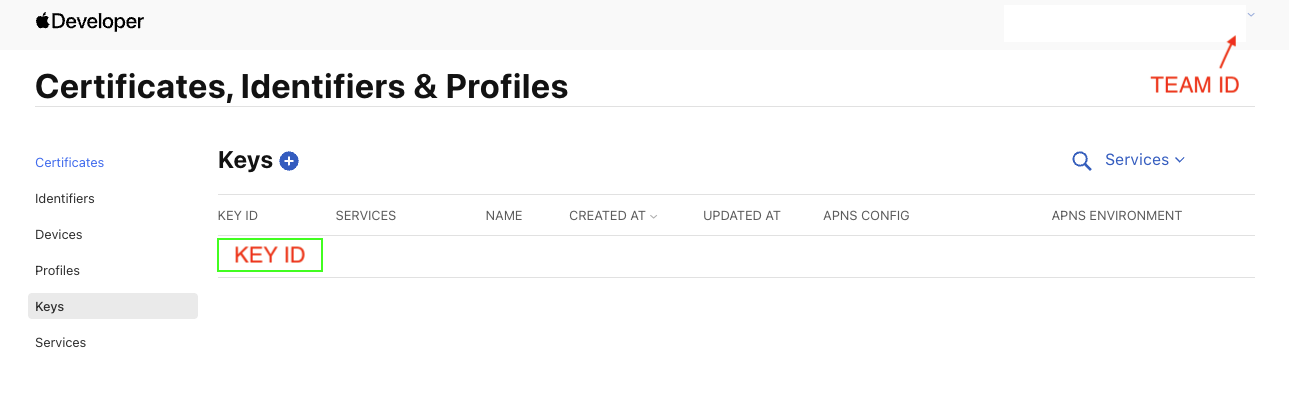
    • Note: If you're unsure where to find your Key ID and Team ID, refer to the image below.

    Custom changes

    How to Change Application Name ?


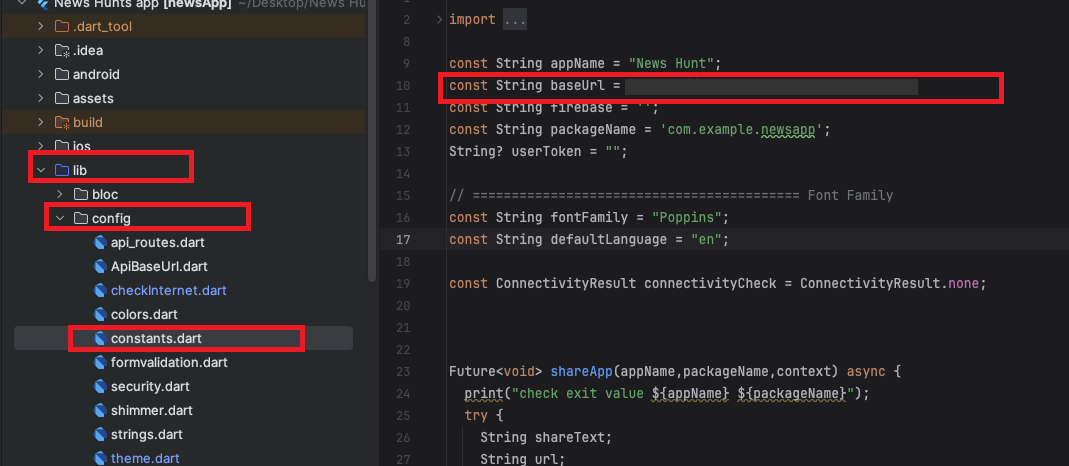
    • Go to constants.dart file from config folder. (lib > config >constants.dart)


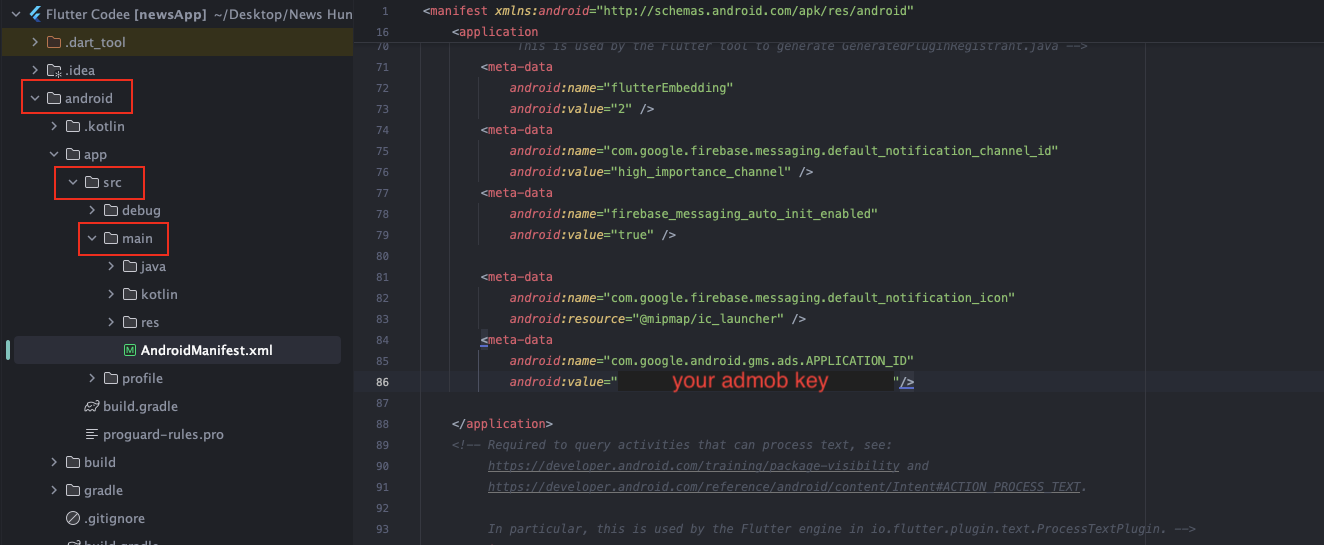
    • For Android, open android > app > src > main > open AndroidManifest.xml and inside that label change that string as shown in below image


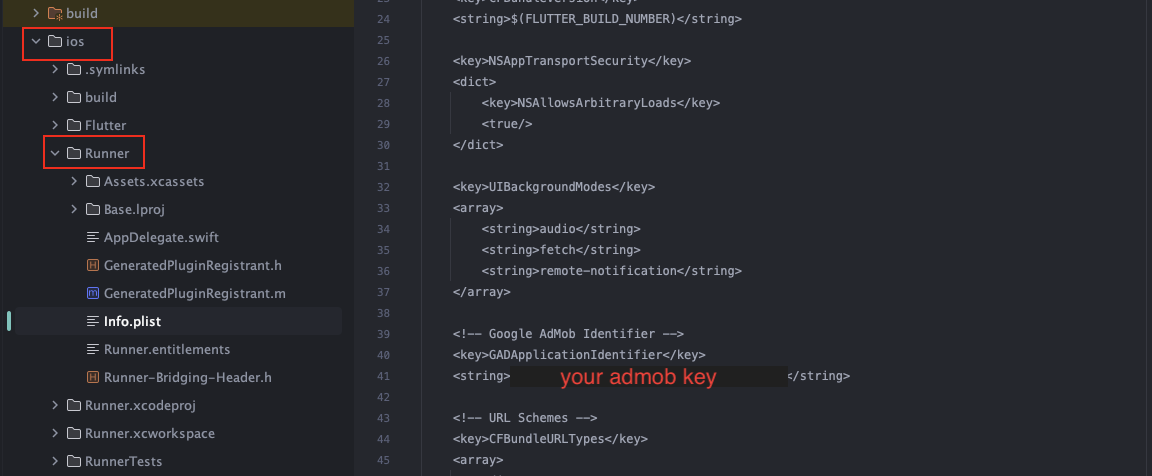
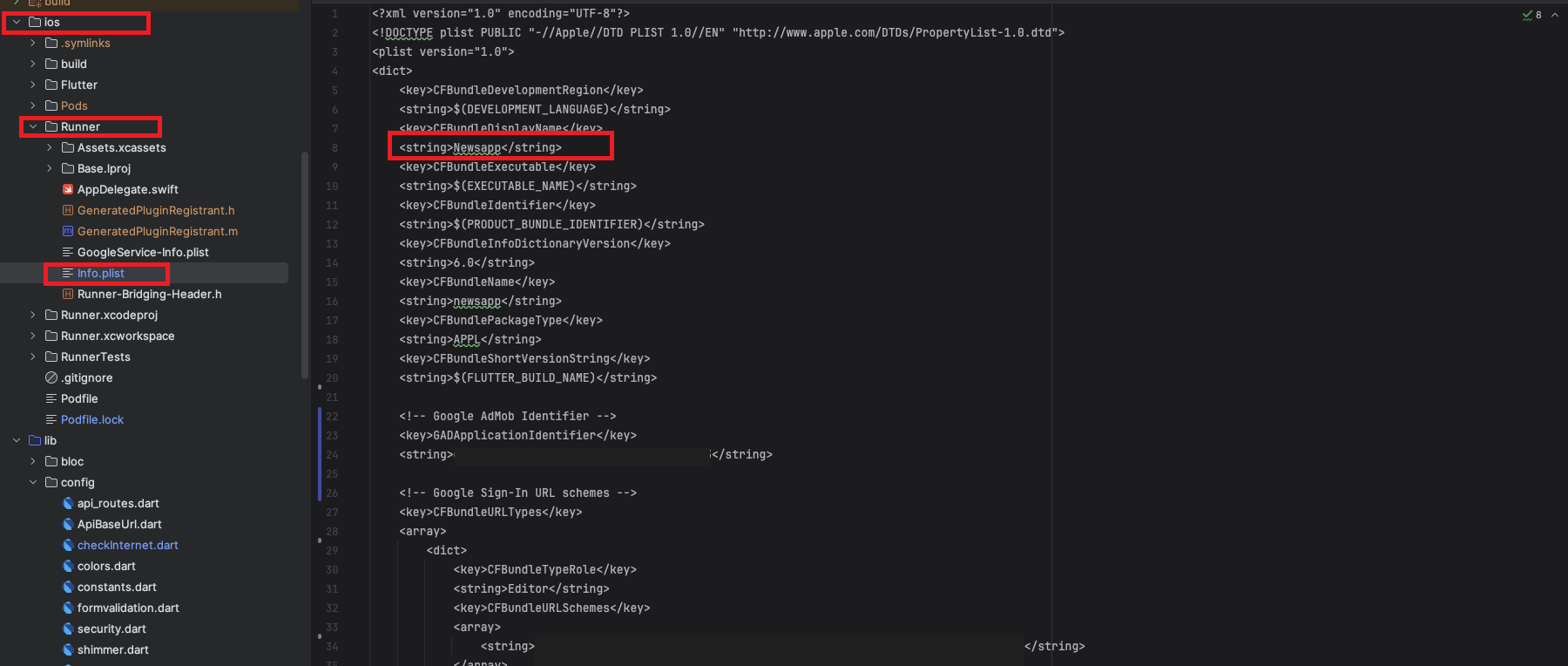
    • For iOS, open ios > Runner > Info.plist inside that there is key CFBundleName, change that key's string as shown in below image


    How to Change API URL ?


    • Go to constant.dart file from helper folder. (lib > config >constants.dart)


    How to add AdMob Key ?


    • For Android, open android > app > src > main > open AndroidManifest.xml and inside that label change that string as shown in below image


    • For iOS, open ios > Runner > Info.plist inside that there is key GADApplicationIdentifier, change that key's string as shown in below image


    How to Change Colour ?


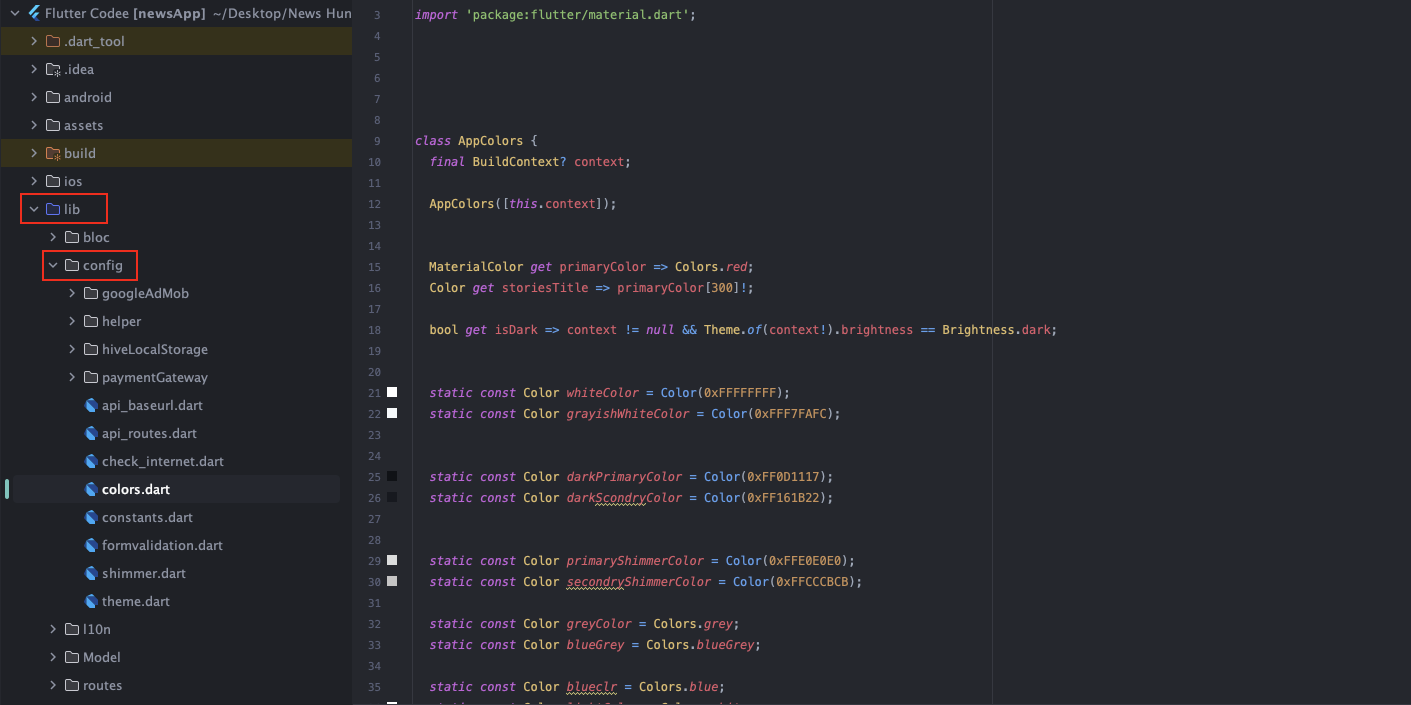
    • Go to constants.dart file from helper folder. (lib > config > constants.dart)


    How to Change Package Name ?


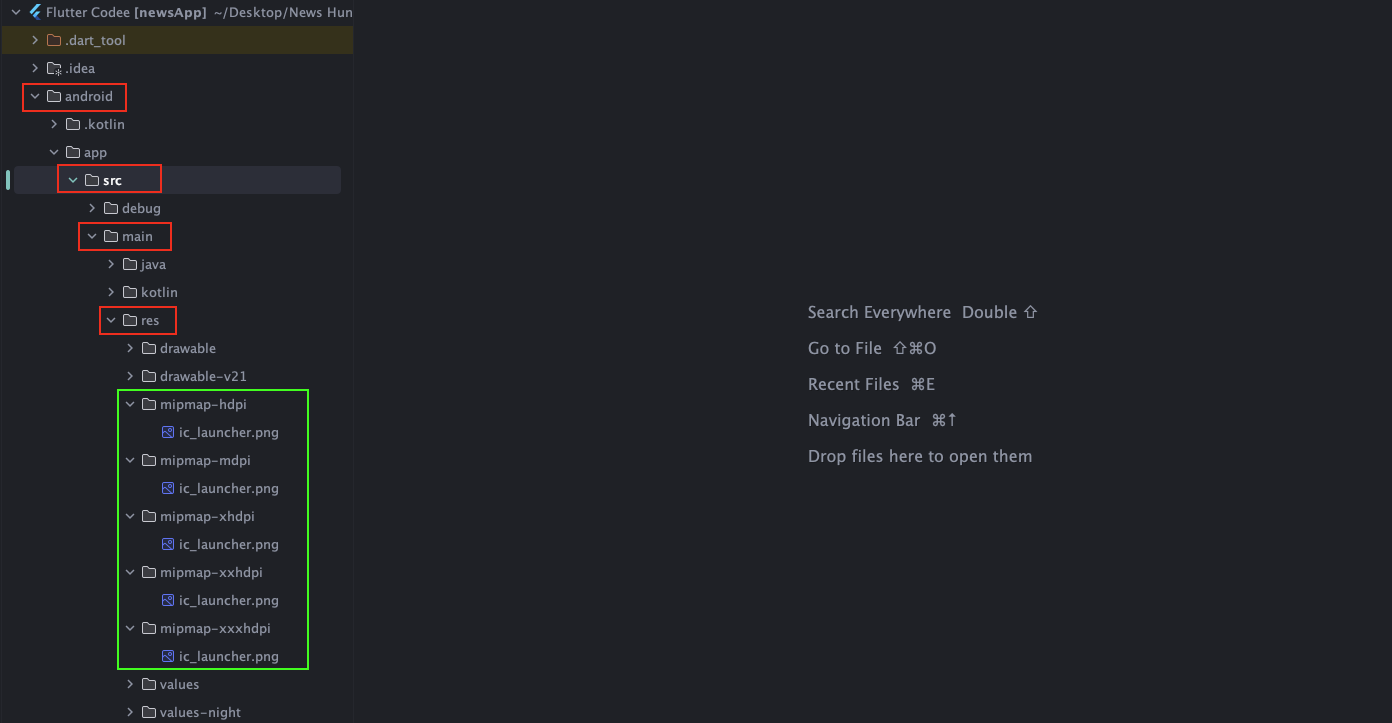
    • open android > app > src > main > kotlin , right click on package name and options will appear as shown in below image
    • Note:
      name which you want to rename on that you have to right click,
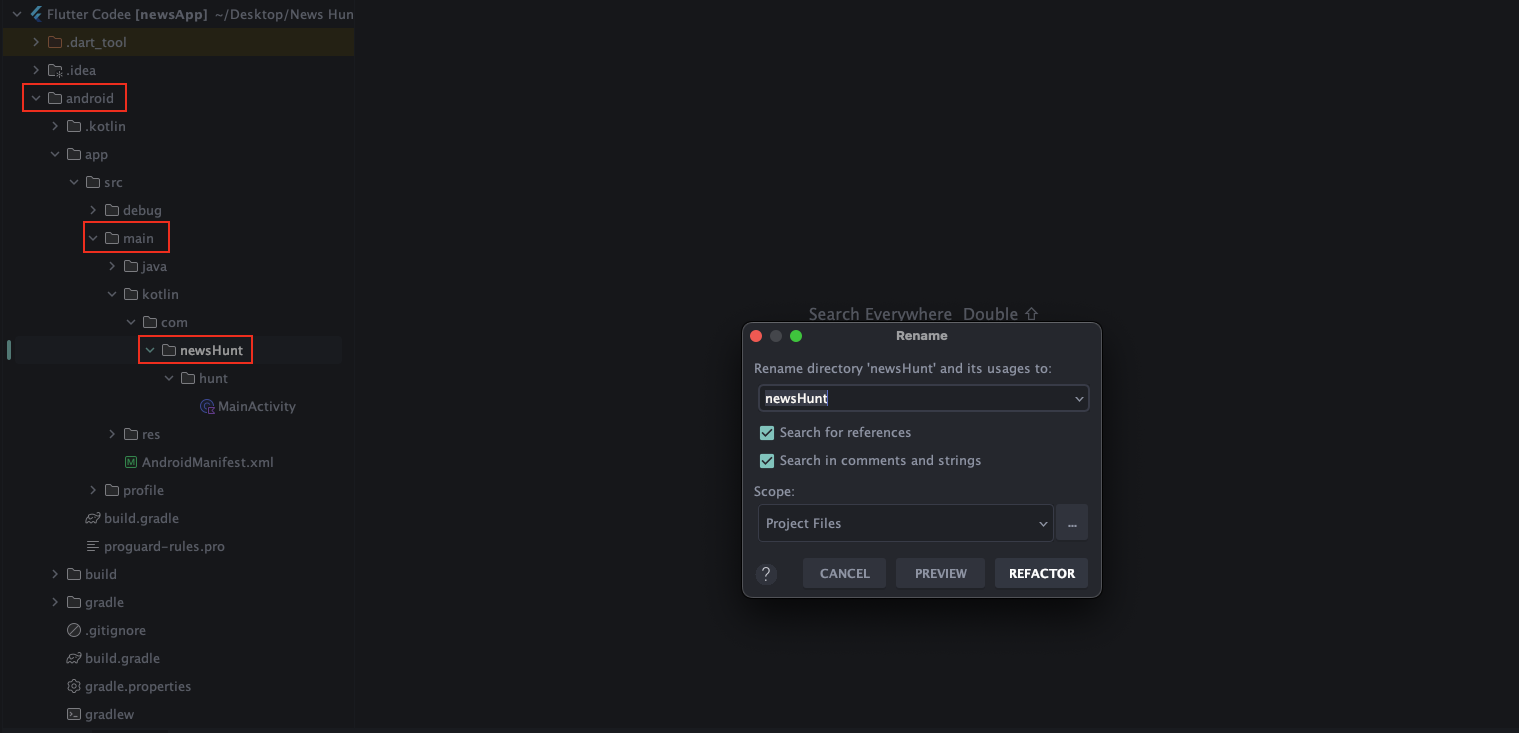
      for example: if you want to rename com then right click on that, or rightclick on Infinitie TechnologiesNewsHunt
    • select Refactor > Rename from options


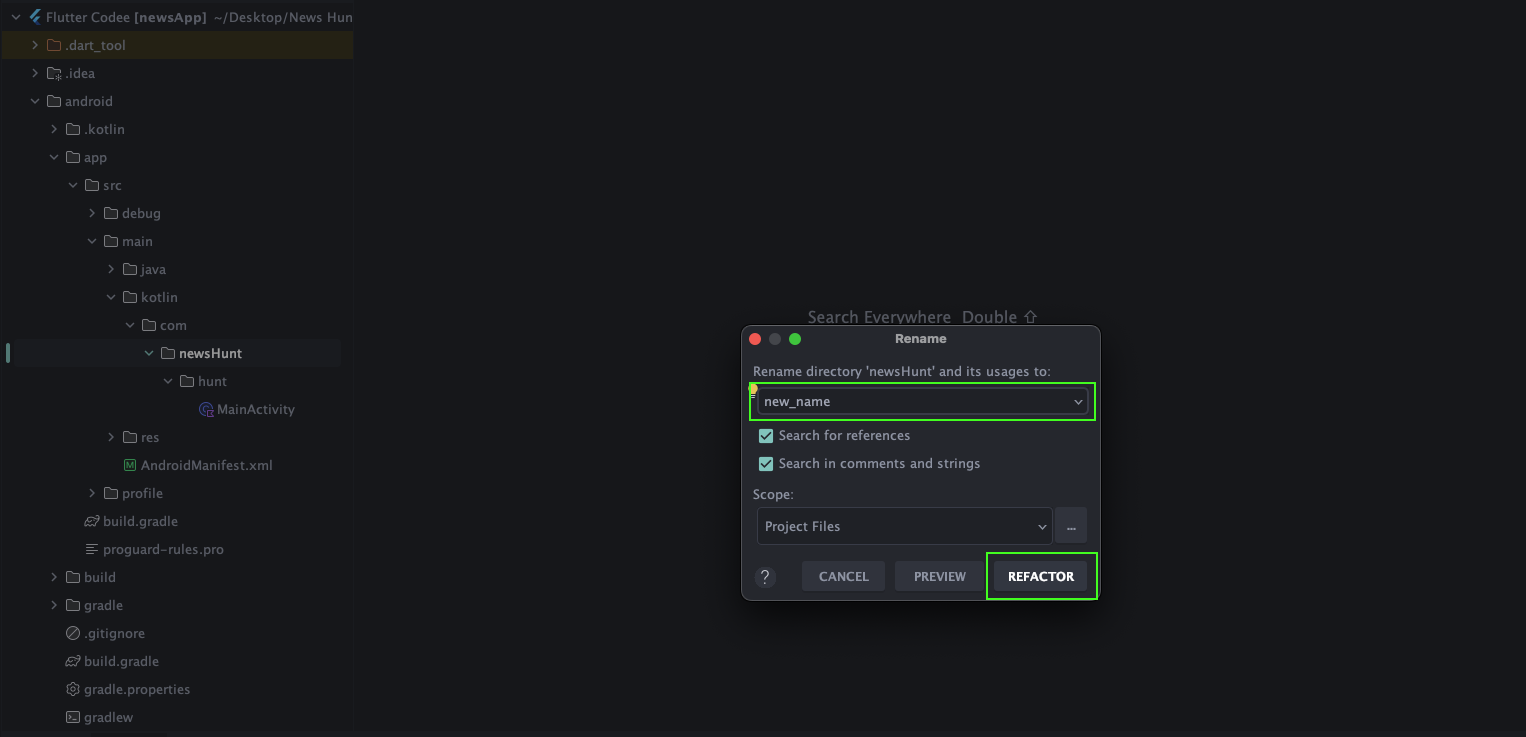
    • after click on Rename, one dialog will appear, enter new name and click on Refactor button.


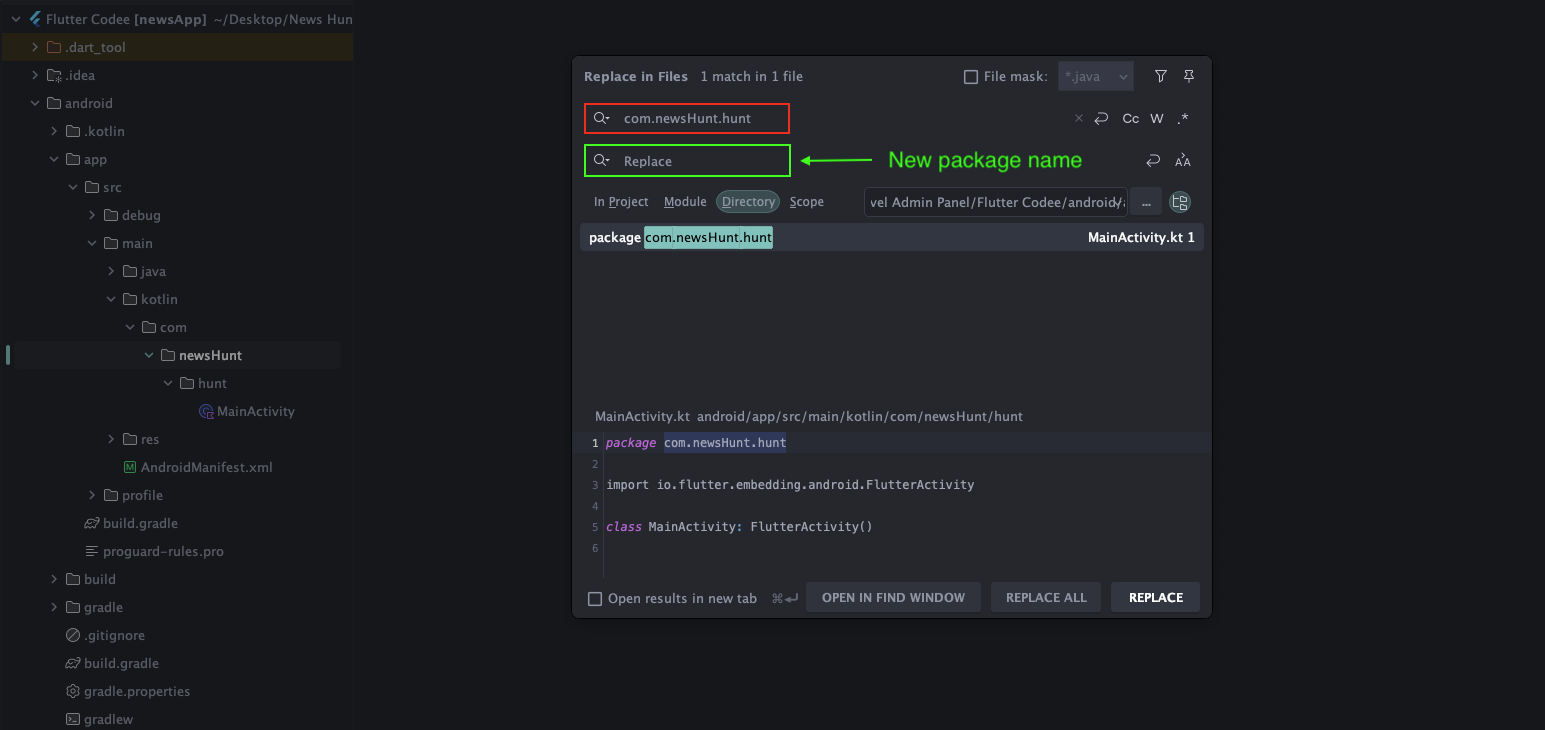
    • Now press ctrl + shift + R and replace old packagename with your new packagename.


    How to Change Other Images ?

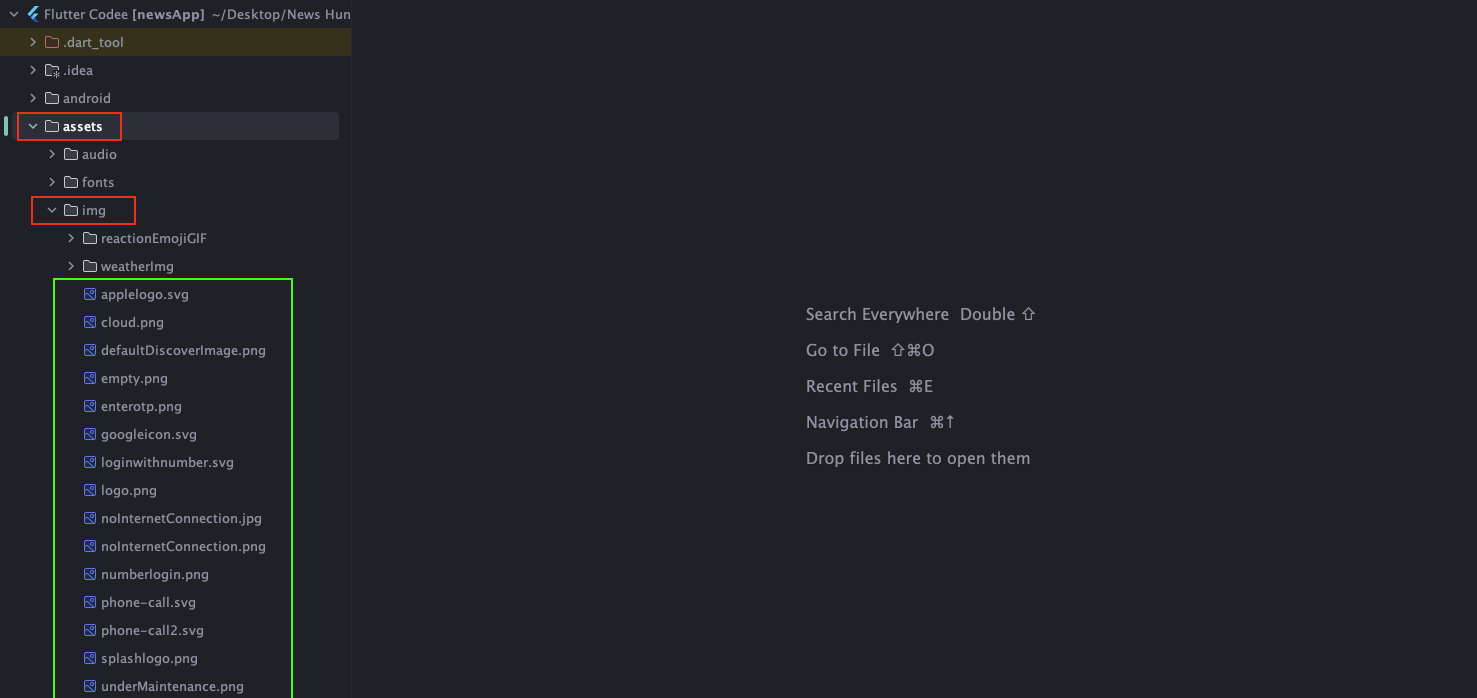
    • If you want to change other images and svgs then you can change that from assets folder


    How to Change Application Font ?

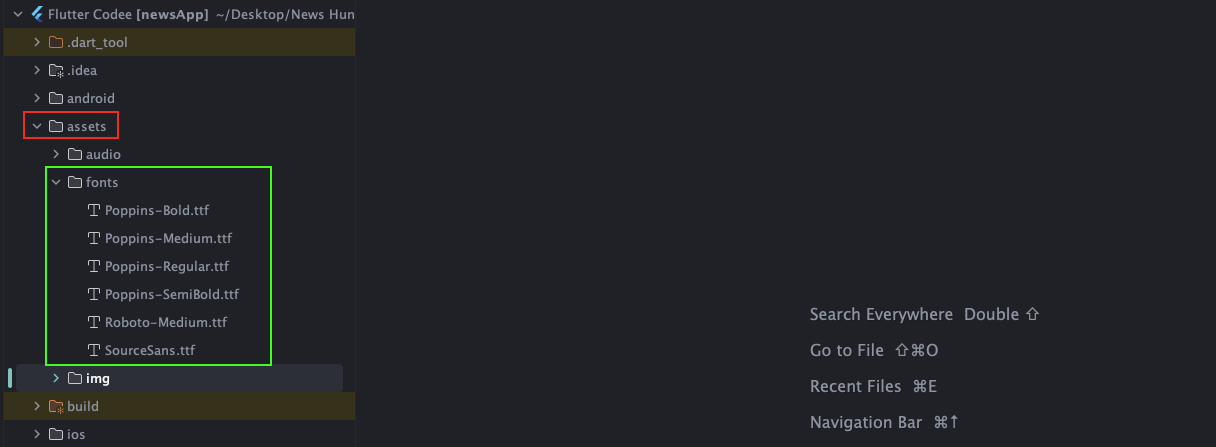
    • Go to assets > font , here you have to paste your font. Now go to pubspec.yaml under fonts section change your font name as shown in below image.


    Why define this scheme ?

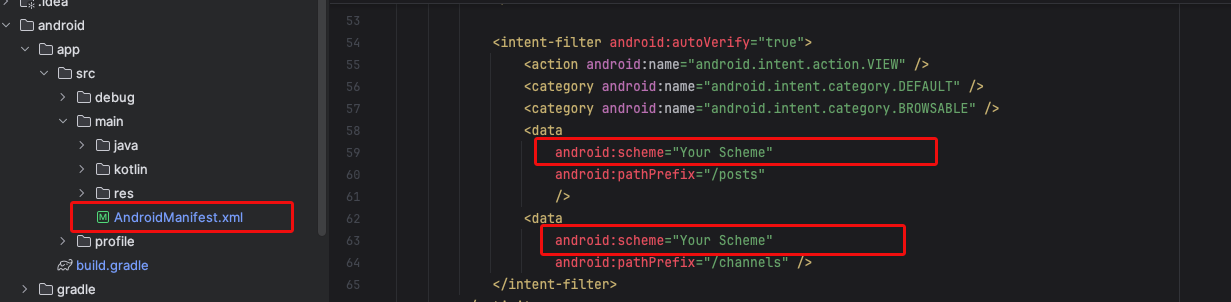
    • Navigate to the directory: android > app > src > main. In this location, you will find the AndroidManifest.xml file. In this file, you need to define the app scheme. Additionally, there are two more files where the scheme should also be defined.
    • Make sure you keep same shceme every where..
    Why is this needed?
    • The purpose of defining this scheme is to allow users to share news with others. When the news is shared, the recipient will be able to access the same news in their app. This scheme ensures that when they open the shared link, they are redirected to the specific news item within the app.
    First file


    Second file


    Third File


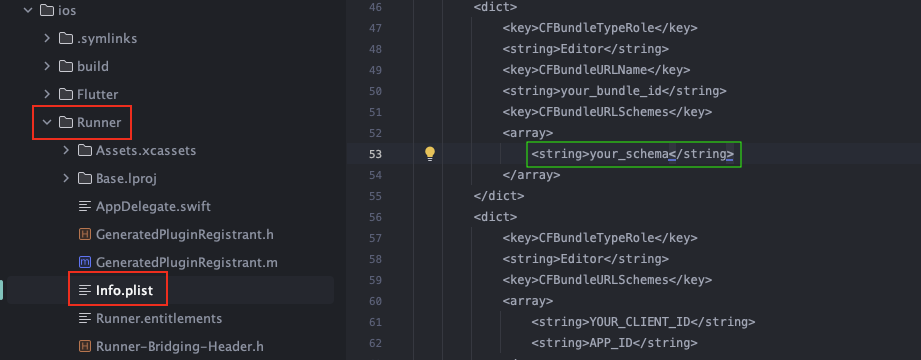
    Forth File : For iOS
    • For IOS, open ios > Runner > Info.plist here you need to add your scheme. Ensure it is same as defined in AndroidManifest.xml


    Note: same scheme in admin panel also following is admin panel path.
    URL Path: Base_url/admin/settings/system. you will find Other Settings Android scheme and IOS Scheme. Keep same scheme here also.

    How to set App Localization?

    • When you make any changes (like adding, renaming, or removing keys) in one .arb file, make sure to update all other .arb files accordingly.
    • This ensures all supported languages stay in sync and prevents issues with missing or mismatched translations.
    • Once all .arb files are updated, run the following command in your terminal: flutter gen-l10n.
    • This will regenerate the localization files based on your updated translations.

    Support

    Need Support ?

    Its our pleasure to serve our service and support. please contact our support team.

    Head of Customer Support : Parasgiri Goswami
    Skype: Parasgiri Goswami

    To help our customers, we constantly be in touch with every customer if they need any assistance regarding our product. We offer our customers a support from Mon ─ Fri 9.00am to 6.00pm IST (GMT +5.30) ─ We are a Team located in India ─ Asia.

    Typically we reply our customers for all the questions and queries within 24 hours of time via comments, support forum or emails.

    Where to find Purchase Code ?

    To find your Purchase code you can visit this link: Where is My Purchase code?

    Your Feedback

    Dear valuable customer, Thank you very much for choosing our product. It's our pleasure to serve top-notch service to you. Please give us your honest feedback that will help us to make a more strong and reliable product by click here Rate Us. Thank you very much.
    Contact Us

    InfinitieTech has creative and dedicated group of developers who are mastered in Apps Developments and Web Application Development with a niche in delivering quality solutions to customers across the globe. Contact us today to find out how we can help you or for freelance work.

    Visit Us : https://www.infinitietech.com/

    Mail Us : info@infinitieTech.com

    Call Us : +91 87995 87762

    Skype : Parasgiri Goswami

    Mail Us : info@infinitieTech.com

    Thank you very much.